Guides / Tutorials / Friends & referrals
Friends & referrals
Add friends, invite them to play and share your link.
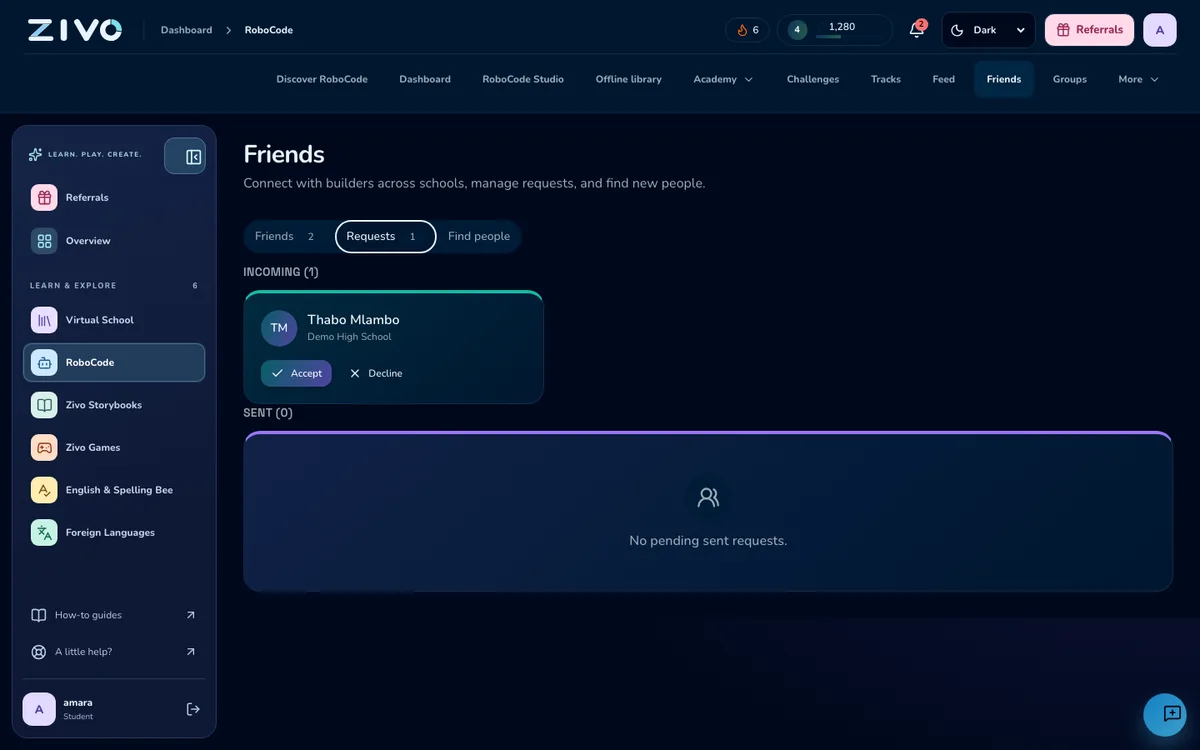
- Open RoboCode and choose Friends under Community, or go to
/robocode/app/friends.zivo.cloud/robocode/app/friends
Friends, Requests and Find people. - Open the Find people tab.
- Type at least 2 letters of the name in Search people by name.
- Click Add friend next to the right person. A message says the request was sent.
- Open the Requests tab. Under Incoming, click Accept or Decline.
- Under Sent, click Requested to cancel a request you sent.
- On the Friends tab, open the menu on a friend’s card and choose Unfriend to remove them.
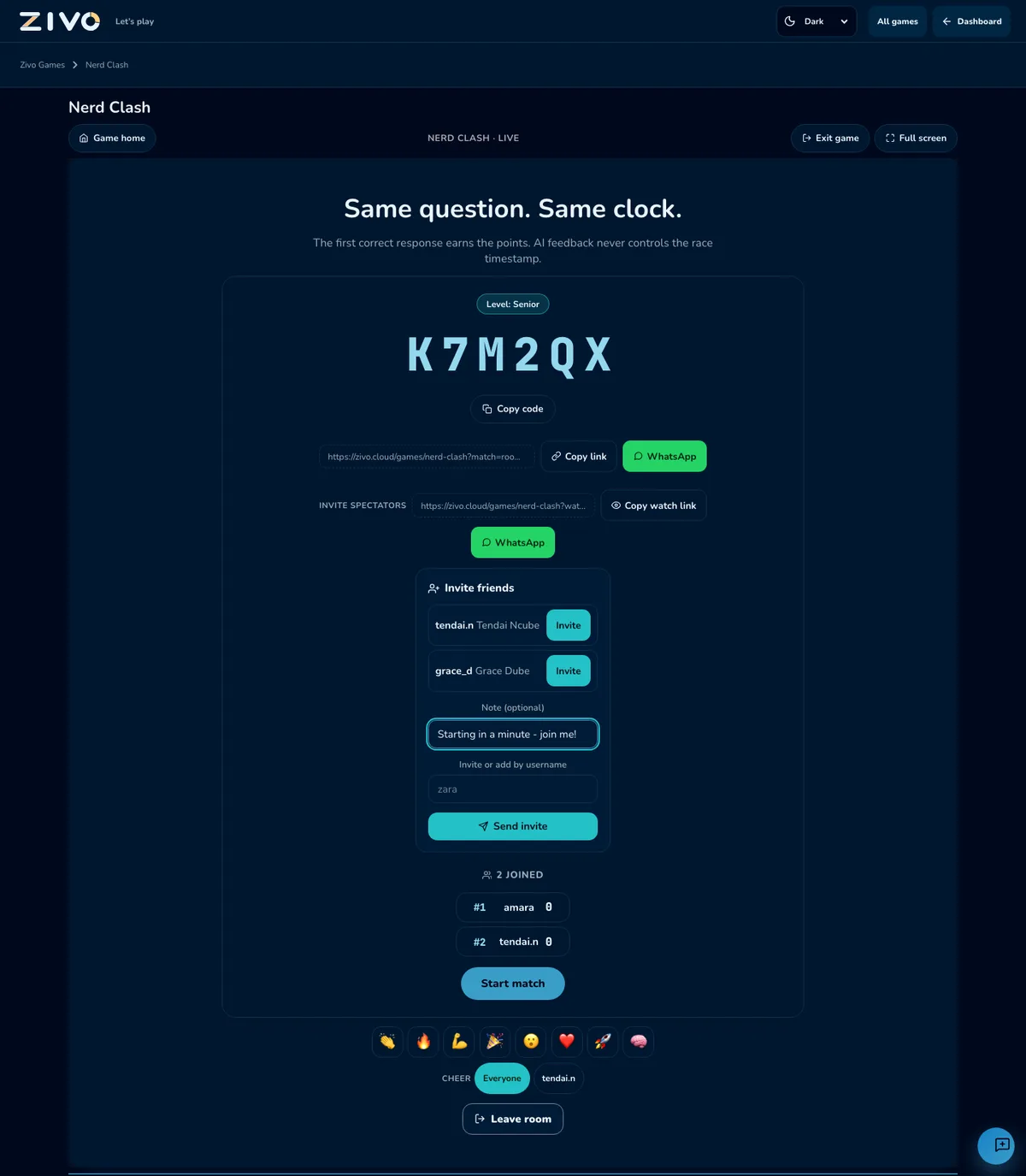
- Open Zivo Games. On a game that supports live play, click Play with friends.
- In the lobby, find the room code. Use Copy code or Copy link to share it, or the WhatsApp button.
zivo.cloud/games/nerd-clash
Invite a friend from the lobby of a live match. - In the Invite friends box, click Invite next to a friend. Add a short message in Note (optional) first if you like.
- To invite someone by name, type their username in Invite or add by username and click Send invite.
- If the box says the person is not your friend yet, click Send friend request. Invite them again once they accept.
- When enough players have joined, the host clicks Start match.
- When a pop-up says that someone wants to be your friend, click Accept or Decline.
zivo.cloud/dashboard
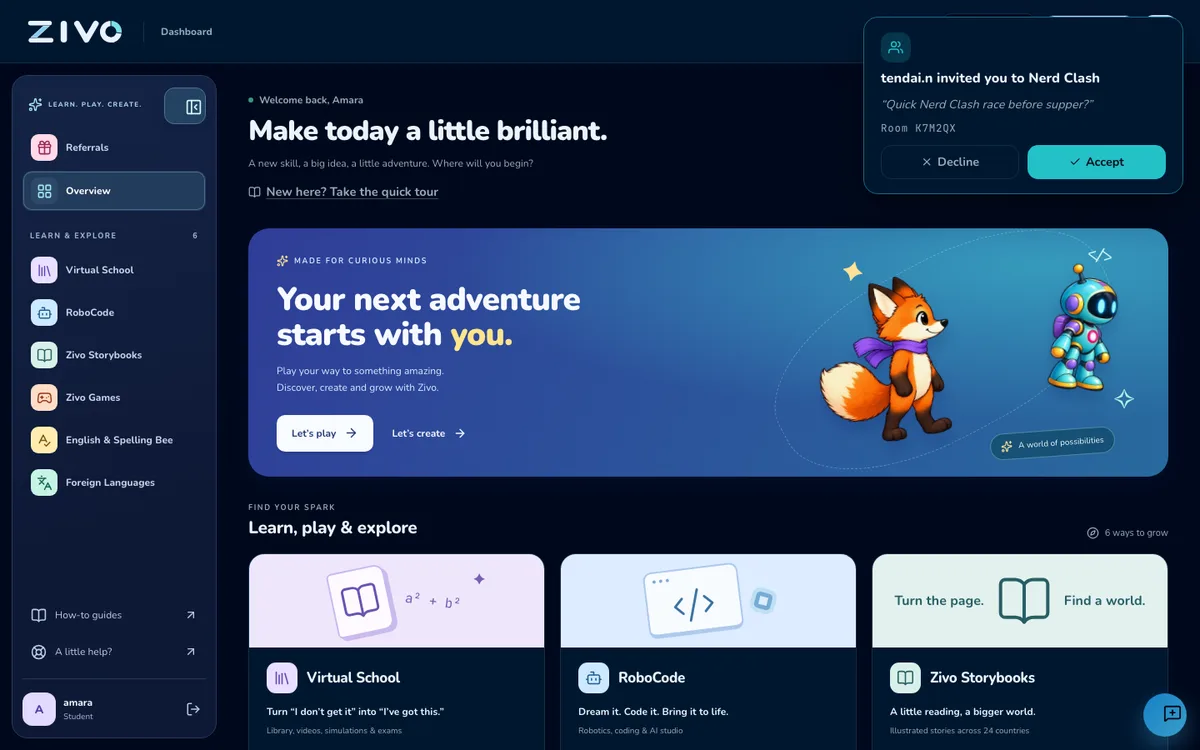
- When a pop-up says that someone invited you to a game, read the note and the room code.
- Click Accept to go straight into the lobby, or Decline to say no.
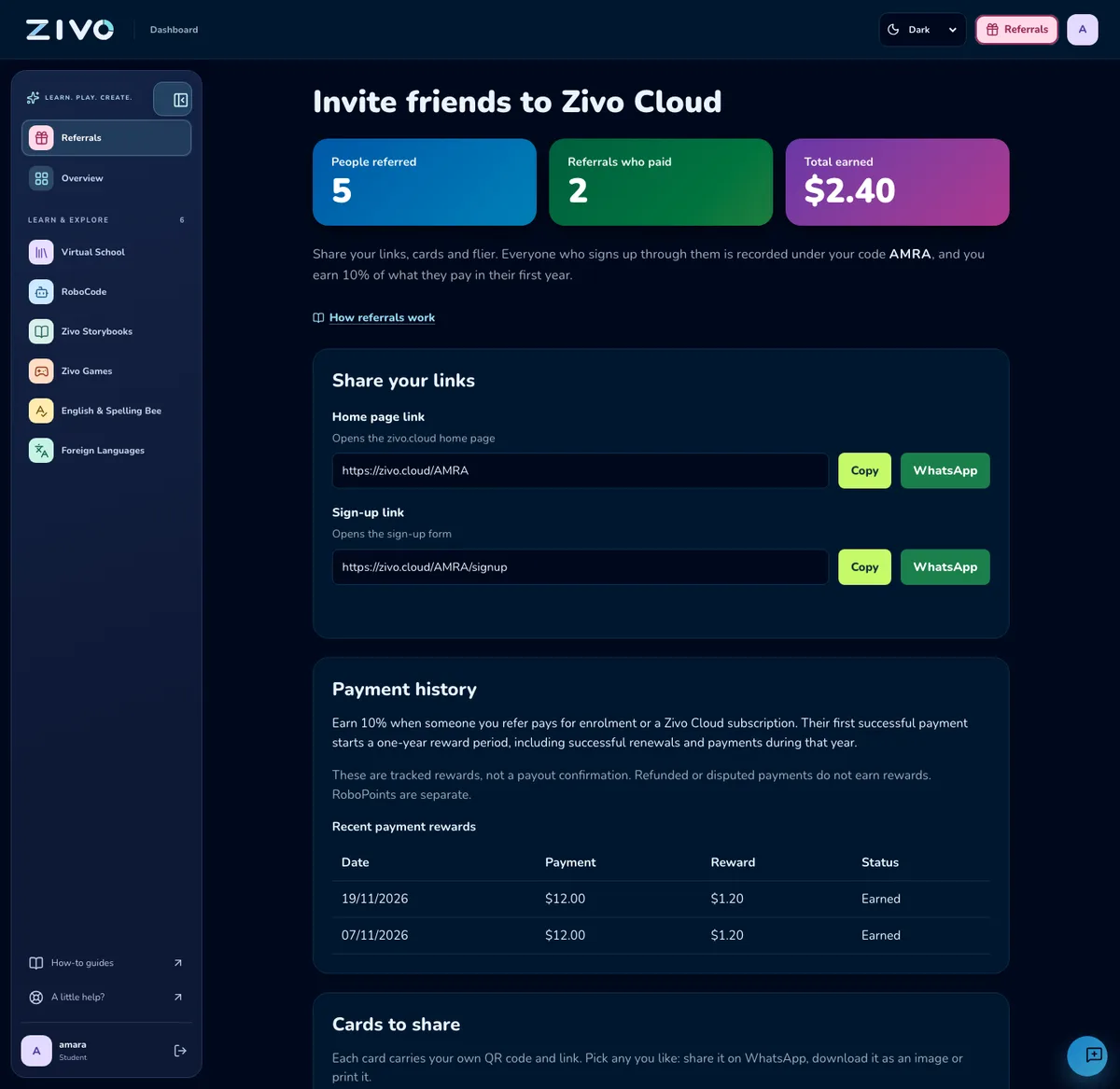
- Click Referrals at the top of the sidebar, or the gift icon in the top bar.
zivo.cloud/referrals
Your referral code, highlights and links. - Find your code in the intro text of Invite friends to Zivo Cloud.
- In Share your links, click Copy next to the Home page link or the Sign-up link.
- Or click WhatsApp to send the link in a message.
- Ask your friend to open the link and sign up. Their sign-up form already shows your code.
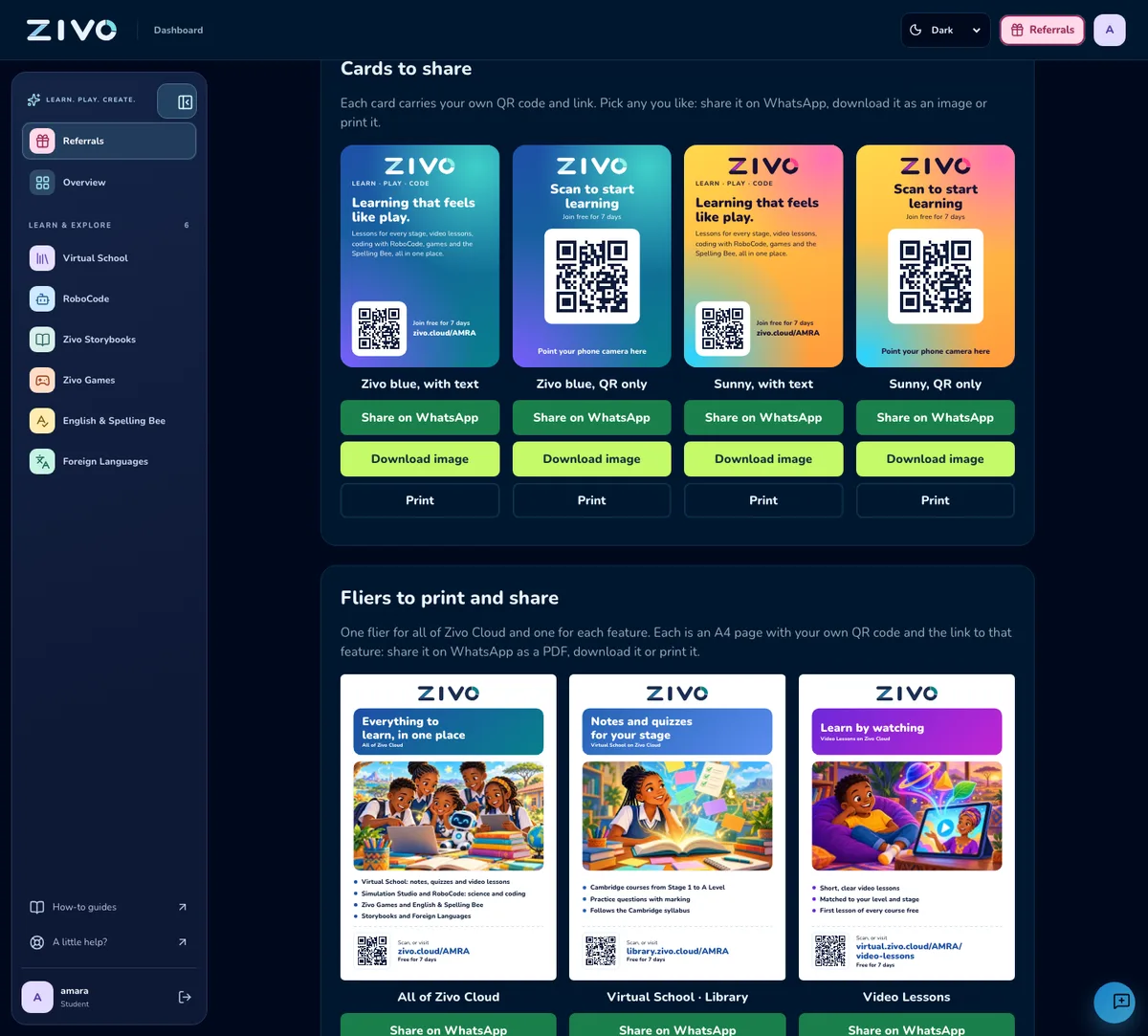
- On the Referrals page, scroll to Cards to share and pick a design.
zivo.cloud/referrals
- Click WhatsApp to send it, Download image to save it, or Print.
- Scroll to Fliers to print and share and pick a flier. There is one for all of Zivo Cloud and others for single modules such as RoboCode or Zivo Games.
- Click WhatsApp, Download PDF (A4) or Print.
- Open Referrals and read the three tiles: People referred, Referrals who paid and Total earned.
zivo.cloud/referrals
Your referral code, highlights and links. - Scroll to Payment history to see Recent payment rewards: the date, the payment, your reward and whether it is Earned or Reversed.
- Scroll to Top recruiters to see the leaderboard. Use the two links to switch between everyone and your own organisation.
- On your profile, the Referrals card has an Open Referrals button as a shortcut.
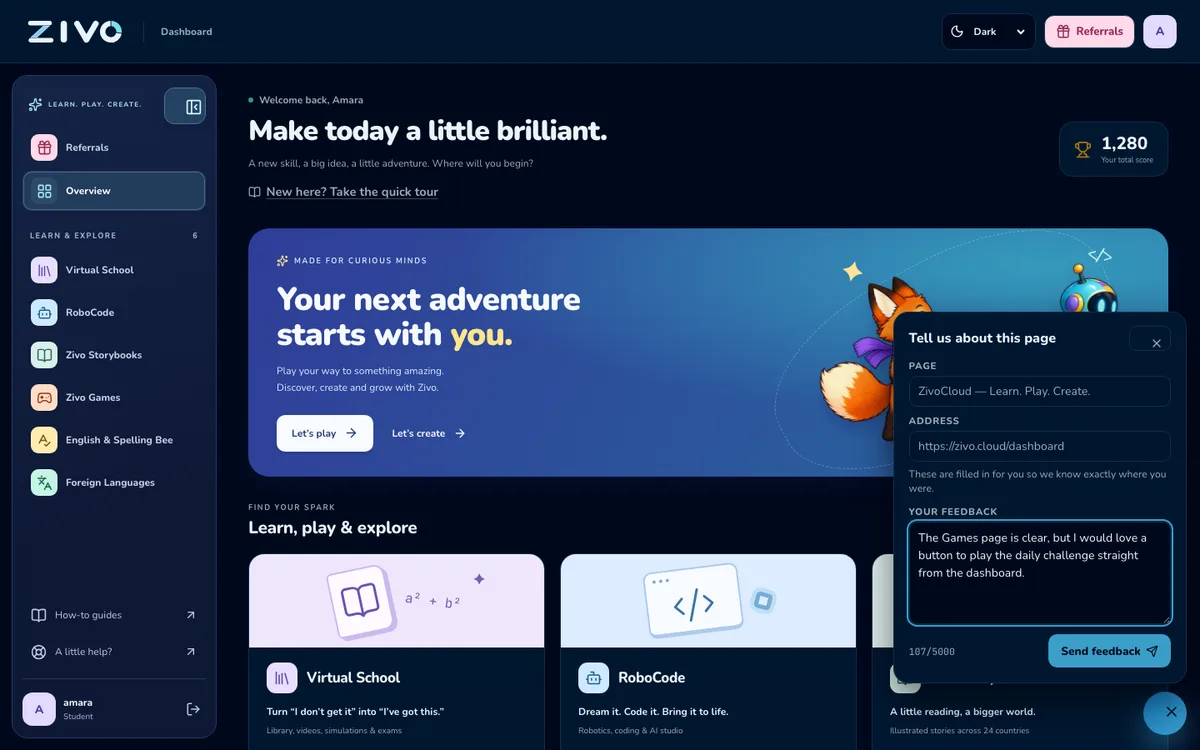
- Click the round message button in the bottom corner. Its tooltip says Send feedback about this page.
zivo.cloud/dashboard
- The panel Tell us about this page opens. The page name and address are filled in for you.
- Type your message in Your feedback. A counter shows how much room is left.
- Click Send feedback. A message thanks you and the panel closes.
- Open
/contact, or click Contact us anywhere on the site. The Contact ZivoCloud box opens. - Pick one of the two WhatsApp numbers or the email address shown.
- Or fill in Your name, Your email, Subject and Message, then click Continue in email app.
- Check the message that opens in your email app, then send it yourself.
Next topic: Schools & staff