Guides / Tutorials / Virtual School
The Library, video lessons, simulations and the Exam Room.
Find your level and choose your subjects in the Library Start or continue a Library course Work through an animated lesson, its review and its practice lesson Take a course practice quiz Read the exam guide and download the PDF summary Find and watch a video lesson Open and run an experiment in Simulation Studio Pick a practice paper in the Exam Room Answer questions and read your marking in the Exam Room Open Virtual School in the sidebar, then choose the Library tab. zivo.cloud/library
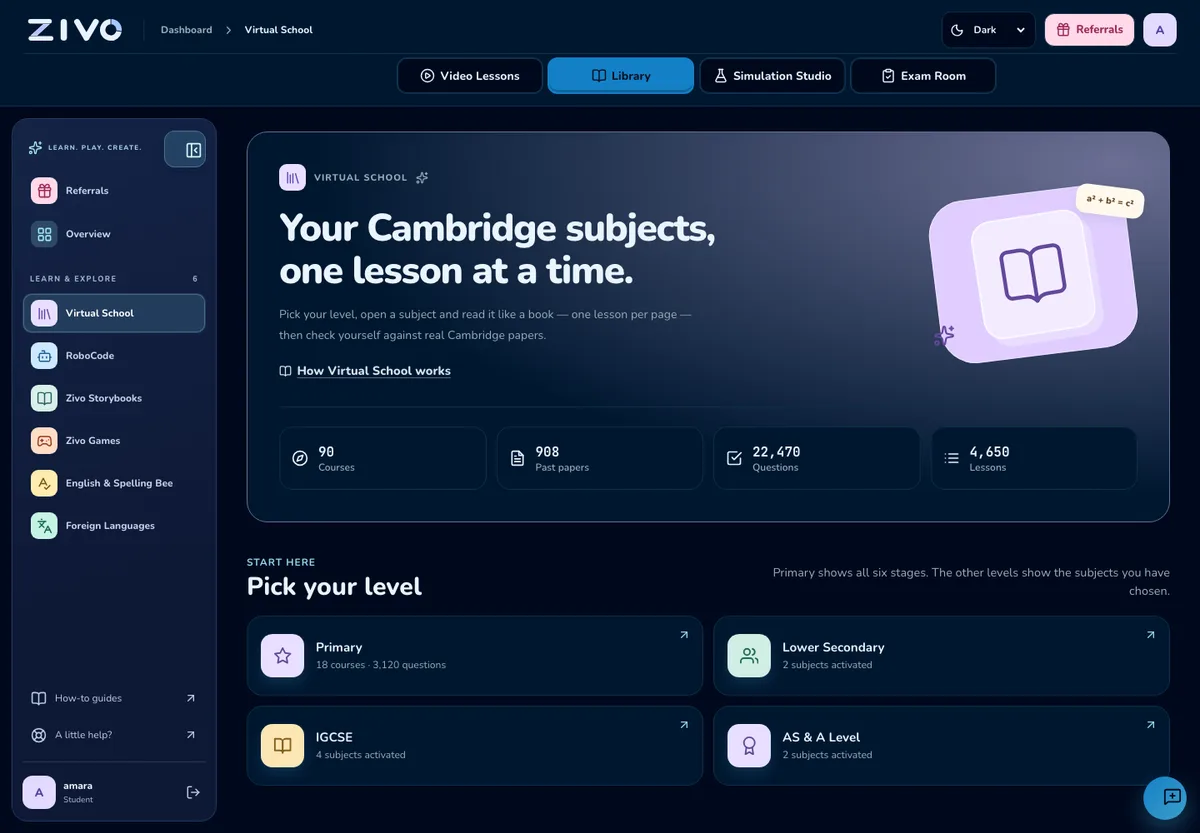
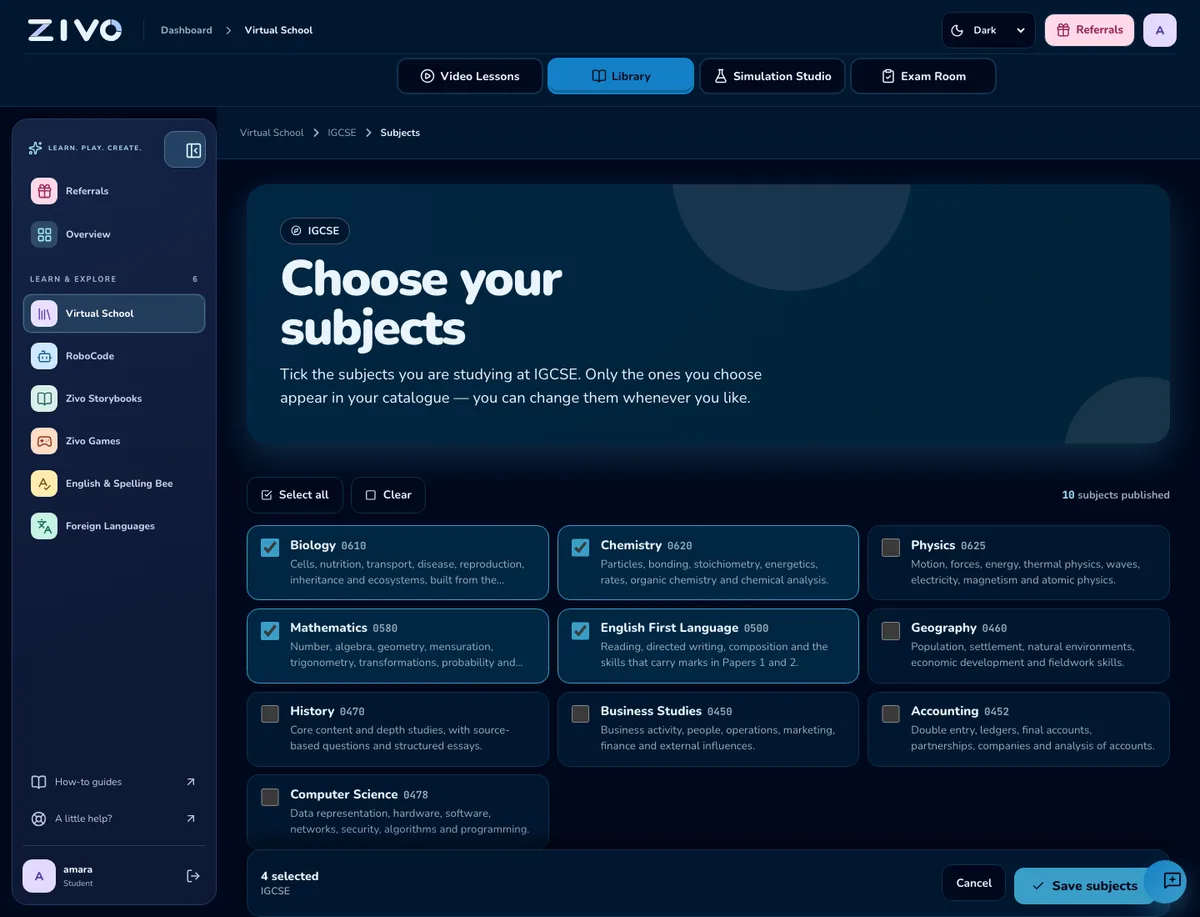
Under Start here , press the card for your level: Primary, Lower Secondary, IGCSE or A Level. For Lower Secondary, IGCSE and A Level, press Add subjects the first time you open the level. Tick each subject you study. Select all and Clear help you change many at once. The footer shows how many you have ticked. zivo.cloud/library/igcse/subjects
Press Save subjects . Your level page now shows Your subjects . To narrow the list, type in Search courses , or use Stage , Subject and Course holds , then press Filter . Press Clear to start again. Good to know
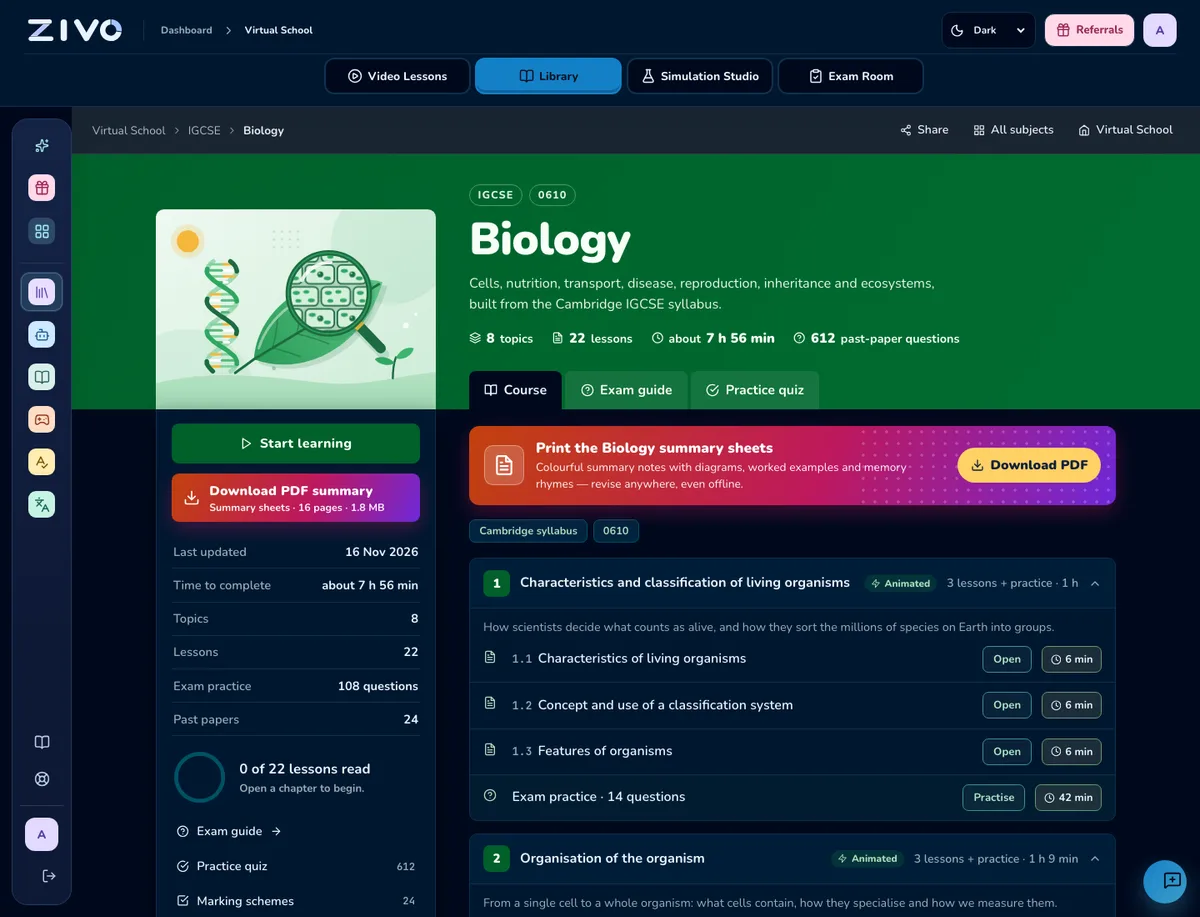
Primary has no subject picker. It opens on the six stages and then lists every subject. You can come back to Add subjects at any time to change your choice. If you see "No courses match", press Clear to remove your filters. Open the Library tab and press your level. Press a course card. The course page shows how many topics, lessons and past-paper questions it has. zivo.cloud/library/igcse/igcse-biology-0610
Press Start learning . Later the same button reads Continue learning , and once you have finished it reads Review from the start . Or scroll to the topic list and open any lesson directly. Use the tabs under the course title to move between Course , Exam guide and Practice quiz . Good to know
Continue learning remembers the exact lesson and page you last opened in this browser.A locked topic shows an Upgrade to unlock badge. Pressing it opens the plans. Read a topic page by page, check yourself with the topic review, then try exam-style questions with worked model answers.
Open a lesson from the topic list of your course. Step through the animated pages with the next button, or with the keyboard. Press Lessons to jump to another lesson. On a phone it is a button in the top bar. At the last lesson of a topic, open the Topic review and answer each question. Press Practice lesson for more exam-style questions. Try each one before you open its model answer. Press Next: followed by the next lesson's name, or Finish at the end of the course. Good to know
The marks beside a question tell you how much to write. Use Back to the course name, or All subjects , at the bottom of the lesson list to leave the lesson. Your place is remembered, so you can close the page and return later. Open your course and choose the Practice quiz tab. The heading tells you how many questions are in the bank. Press Start the quiz . Answer the question. Multiple-choice answers are marked at once. Written answers are marked by AI. Read the Official marking scheme or the Model answer shown after each answer. Press Next question . After the last one, press See your result . Good to know
AI marks on written answers are provisional. Compare your answer with the marking scheme yourself. There is a daily allowance for AI marking, so spread long sessions over more than one day. Past-paper questions are Cambridge material and carry the exam board's credit. Open your course and choose the Exam guide tab. Not every course has one. Use the sidebar to move between the guide's sections. Quick review is a short quiz at the end. Go back to the Course tab. Press Download PDF summary to save the summary sheet. It opens in a new tab. Good to know
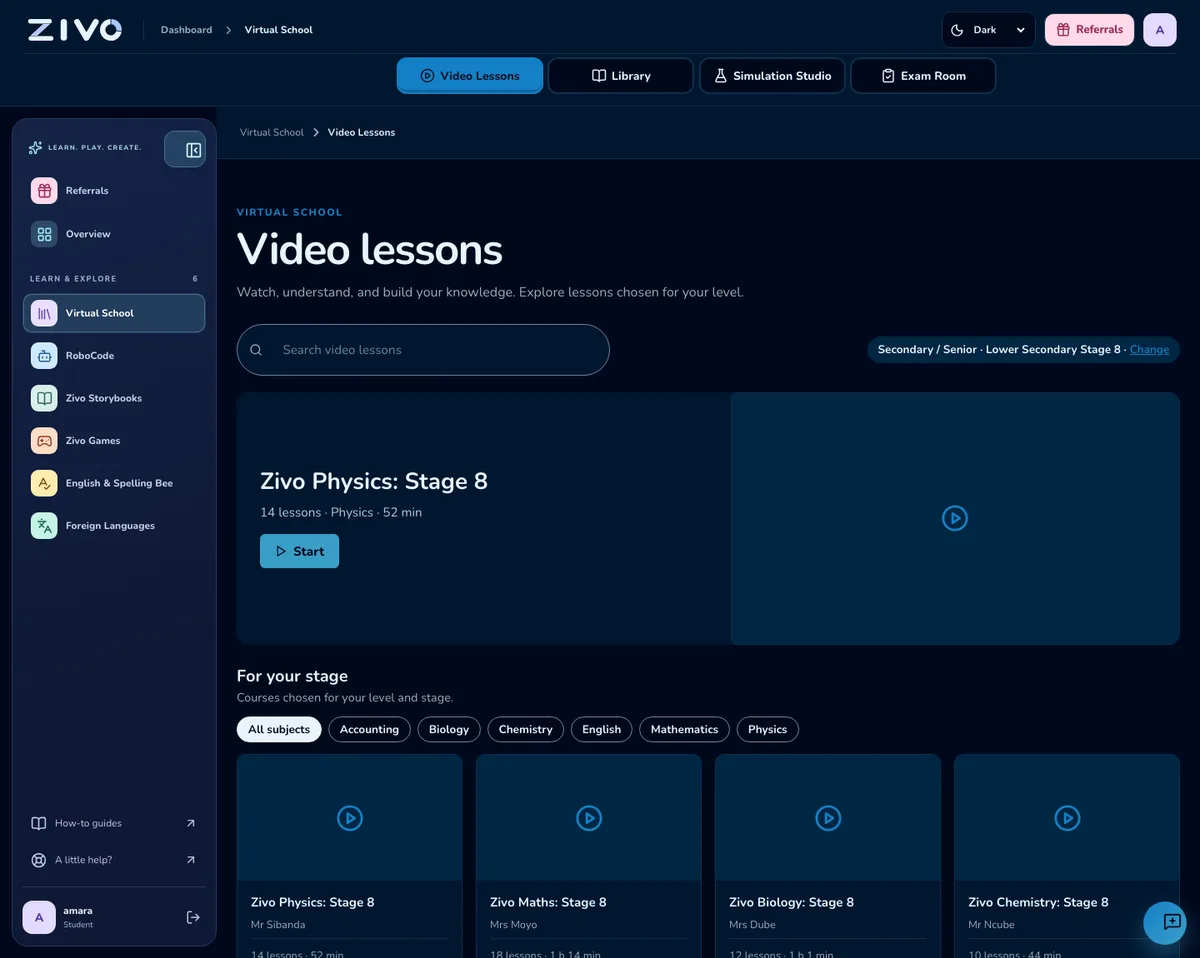
The guide explains the paper structure and how marks are given. Exam questions inside the guide follow the same plan rules as the Practice quiz. Open Virtual School in the sidebar. The Video Lessons tab opens first. zivo.cloud/video-lessons
Type in Search video lessons , or press a subject chip such as All subjects under For your stage . Press a course card. If you are not signed in, press Sign in to watch . On the course page, press Start: followed by the first lesson. If you have watched some already it reads Continue: . Play the video. Use Course lessons to pick another lesson, or the watch-next link under the video. Under the title, the links Video dashboard , Lesson page and Topic page take you to the matching written lesson. Good to know
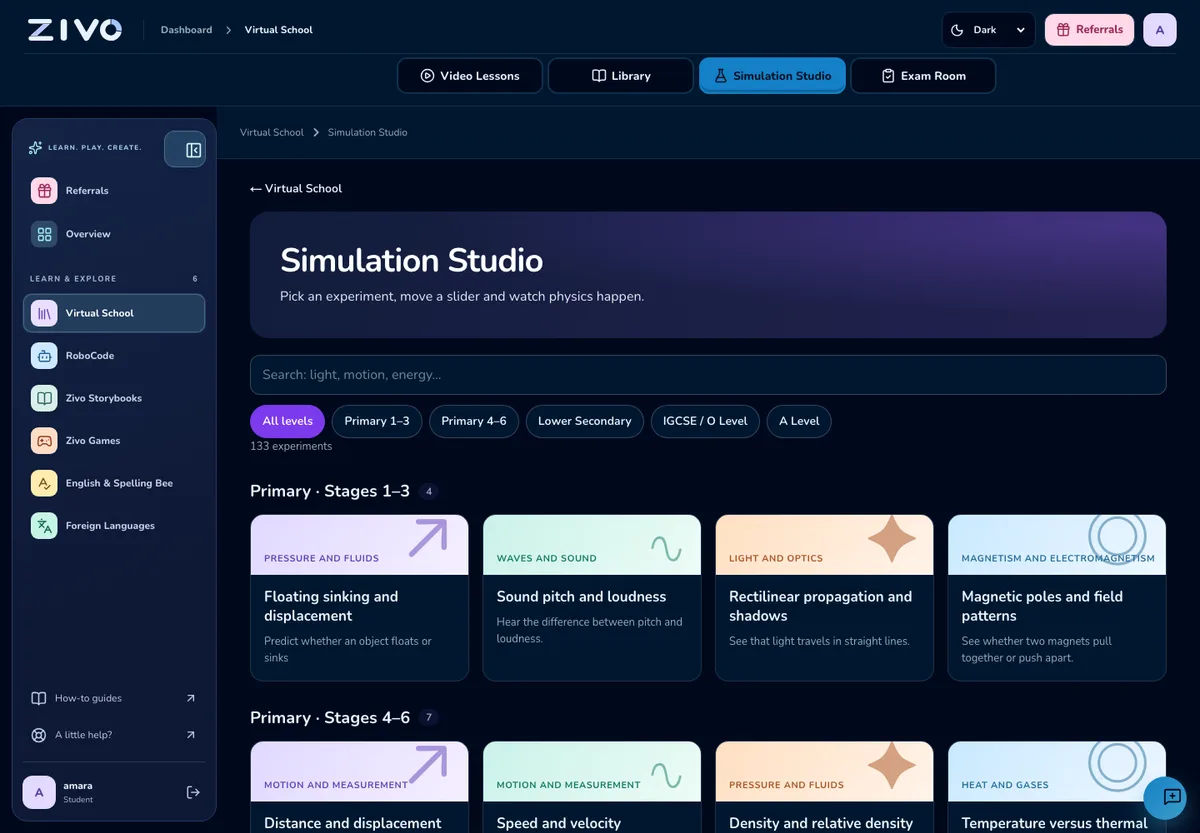
The page shows courses for your own level and stage, plus For every level courses. Press Change beside your stage to update it on your profile. A locked video shows Upgrade to unlock . Press See plans or Back to the course . If the video stops after a long time, reload the page. Video links last about half an hour. If a stage has no videos yet, the page says "No video lessons are available yet." Open Virtual School and choose the Simulation Studio tab. zivo.cloud/virtual-school/simulation-studio
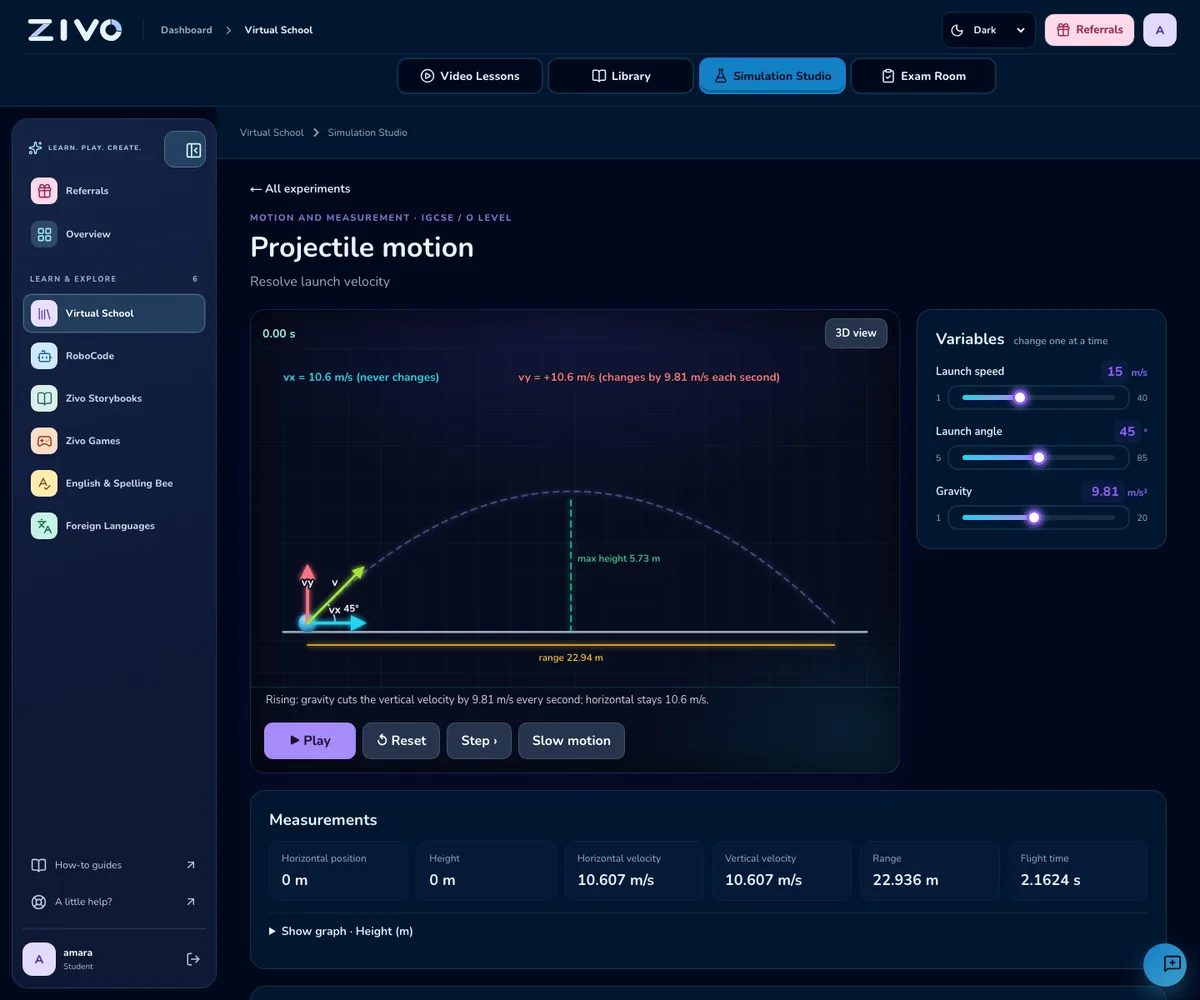
Type in Search experiments , or press a level chip such as All levels . Press an experiment card to open it. Press Play . The experiment starts paused. zivo.cloud/virtual-school/simulation-studio
Change one thing at a time under Variables . Use the sliders or the choice buttons. Watch the numbers under Measurements . Open Show graph if you want to see them drawn. Use Pause , Reset , Step or Slow motion to look more closely. Follow the Try this checklist and open the Learn more sections for the science. Good to know
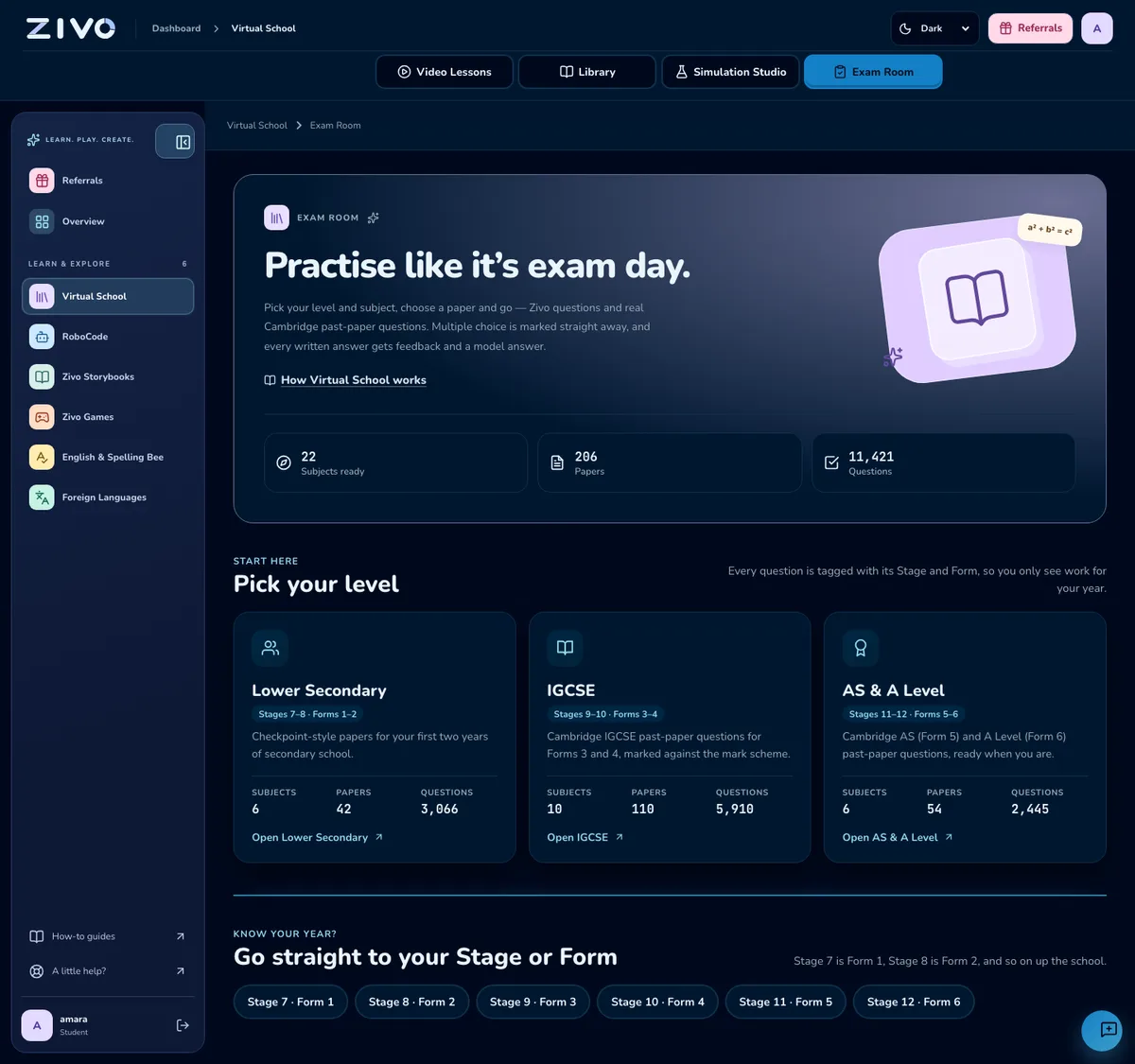
Random experiments have a New random sample button that starts again with new values. The experiment pauses on its own when you leave the browser tab. Each experiment lists its Model limits , so you know what the picture leaves out. Press All experiments to return to the catalogue. Open Virtual School and choose the Exam Room tab. zivo.cloud/virtual-school/exam-room
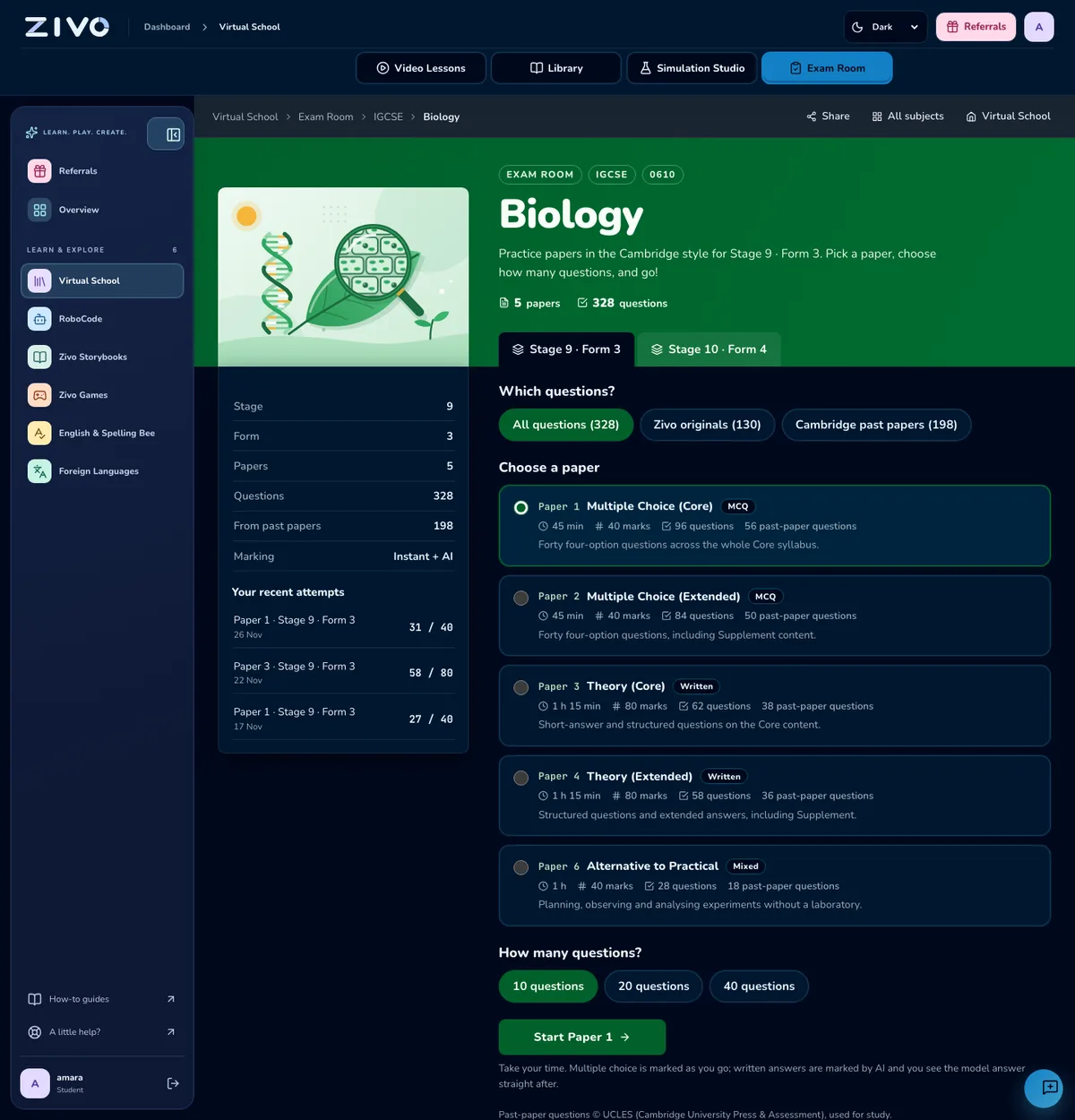
Under Pick your level , press a level card. Or use Go straight to your Stage or Form . Choose your subject. Choose a stage tab if the page shows one. Under Which questions? , choose All questions , Zivo originals or Cambridge past papers . zivo.cloud/virtual-school/exam-room/igcse/igcse-biology-0610
Pick a paper under Choose a paper , and a length under How many questions? . Press the Start button for your paper. Good to know
A paper marked "Coming soon" has no questions yet. Your earlier attempts are listed under Your recent attempts on the course page. The Exam Room covers Lower Secondary, IGCSE and AS and A Level. For a multiple-choice question, press your choice. It is marked at once. For a written question, type under Your answer as you would in the exam, then press Submit answer . A question with parts has one box per part. Read the feedback: your marks, What earned you marks , the Command word tip , the Model answer and the Official mark scheme . Press Next question , or Skip this question to come back later. At the end, read your score and review each answer. Press Pick another paper to carry on. Good to know
Written answers are marked by AI and labelled AI-marked . Treat the marks as provisional. If marking is busy your answer is kept. Press Submit answer again after a moment. If you are told you have sent lots of answers, take a short break and try again. Next topic: RoboCode