Guides / Tutorials / Getting started
Create your account, choose your level and find your way around.
Create your learner account Verify your sign-up code by email or WhatsApp Apply for a Partner or School account Log in to ZivoCloud Use one login for ZivoCloud and RoboCode Set your own password after an administrator creates your account Choose your level and stage Find your way around the dashboard and sidebar Edit your profile, picture and level Change your password Switch between light and dark Understand your trial and the Free plan Find help and contact the team Open /signup, or click Sign up under the sign-in form. zivo.cloud/signup
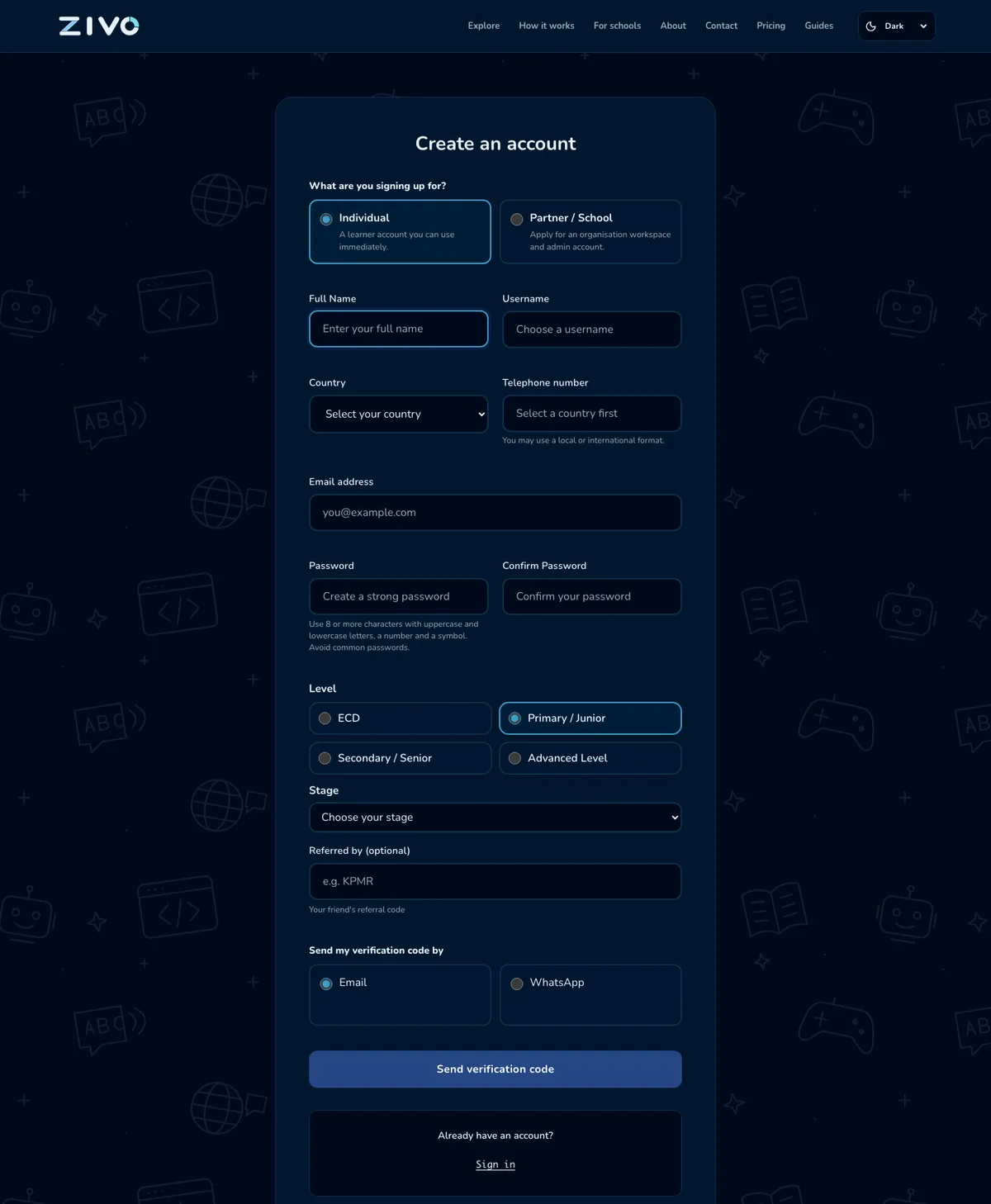
The sign-up form for an individual learner. Under What are you signing up for? keep Individual selected. Type your Full Name and a Username . You will sign in with the username. Choose your Country and type your Telephone number . If a red hint appears, check the number for that country. Type your Email address , then a Password and Confirm Password . Use at least 8 characters with capital and small letters, a number and a symbol. Choose a Level card, then open Stage and pick your stage. If a friend gave you a code, check that Referred by (optional) shows it. It is filled in for you when you arrive through a friend’s link. Under Send my verification code by choose Email or WhatsApp , then click Send verification code . Go on to the next tutorial to finish. Good to know
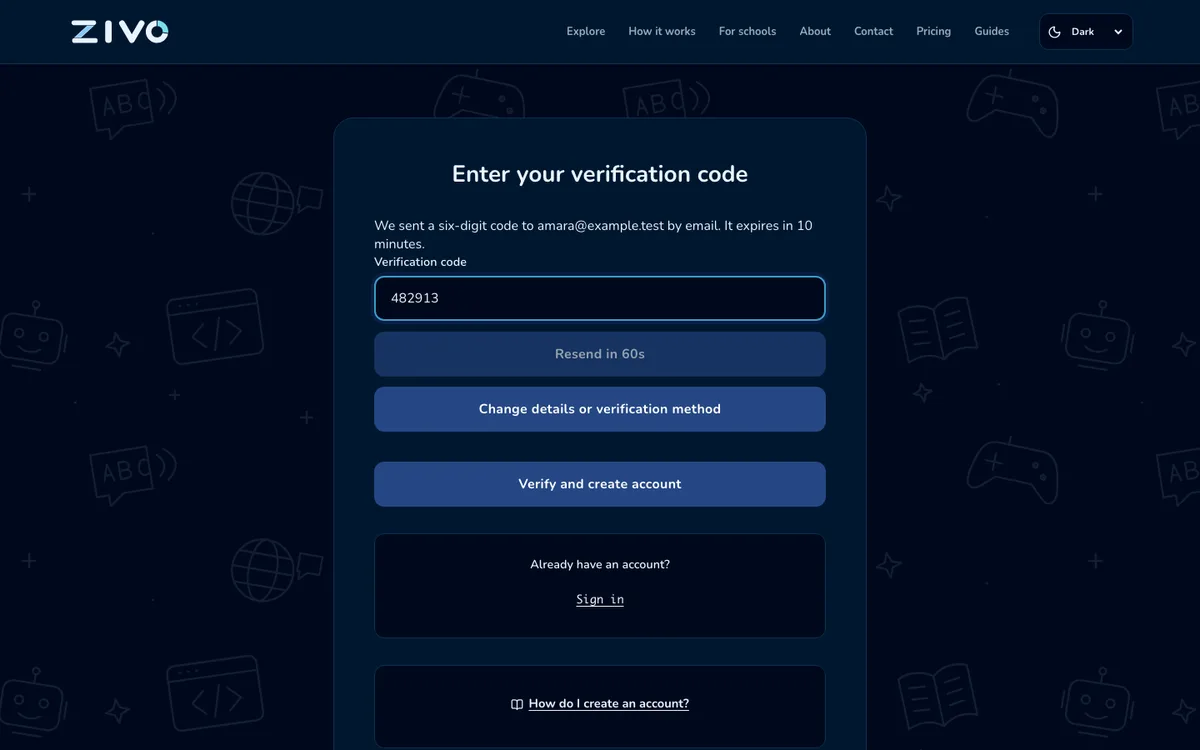
Common passwords such as "password" are refused. Pick something only you would think of. Signing up for a school or organisation? Use the Partner or School application instead. After Send verification code , read the message that says a six-digit code was sent to your email address or phone. zivo.cloud/signup
Type the six-digit code you received. Open your email or WhatsApp and copy the six digits. Type them in Verification code . Click Verify and create account . Partner and School applicants click Verify and submit application . You arrive on your dashboard. Your 7-day trial has started. Good to know
The code works for 10 minutes. If it does not arrive, wait for the countdown to finish and click Resend code . Chose the wrong way to receive the code? Click Change details or verification method and start again. If WhatsApp says it is currently unavailable, choose Email . Open /signup and choose Partner / School under What are you signing up for? zivo.cloud/signup
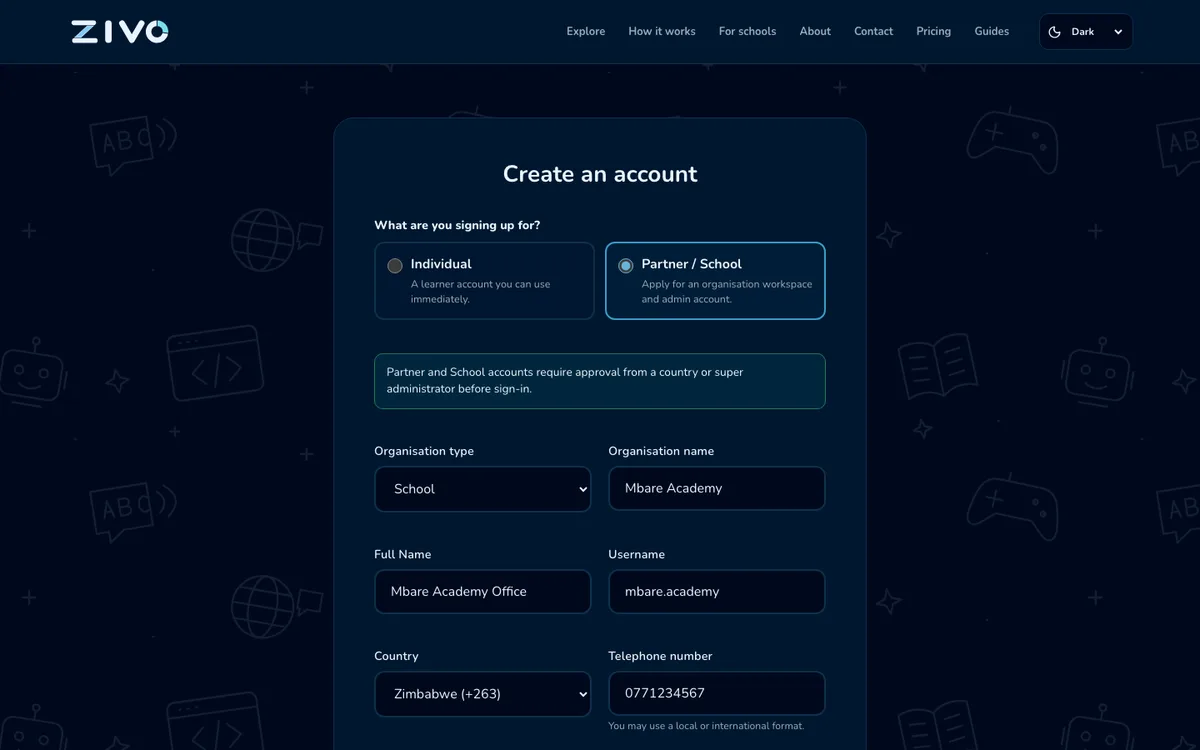
Choose the Organisation type : School or Partner organisation . Type the Organisation name . Fill in your name, username, country, telephone number, Work email and password. Choose how to receive your code, click Send verification code , then type the code. Click Verify and submit application . The message Application submitted appears. Click Return to sign in and wait for approval. Good to know
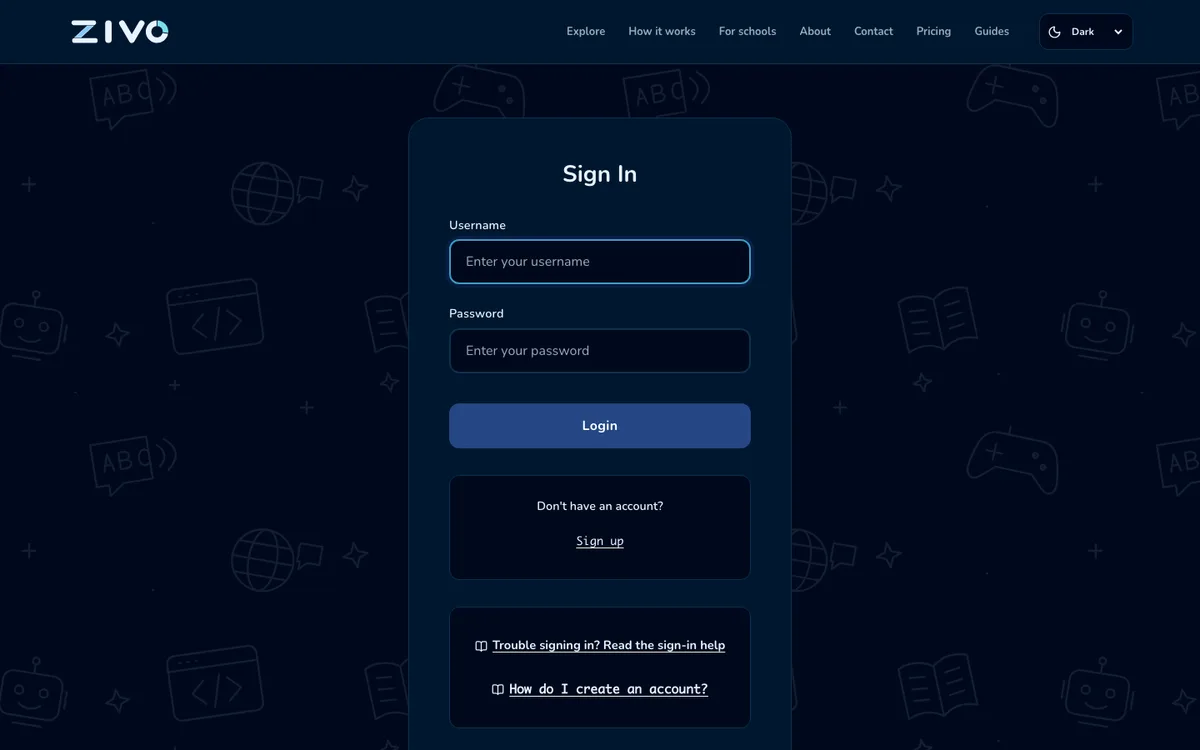
Until your application is approved, signing in shows that it is awaiting administrator approval. This is normal. After approval you can sign in and set up your organisation. Other people in your organisation get their accounts from you. Open /login. The page is called Sign In . You can also click Login in the top bar of the home page. zivo.cloud/login
Type your Username . It is the username you chose, not your email address. Type your Password . Click Login . The page reloads and takes you to your dashboard or the page you asked for. Good to know
There is no "Forgot password" link. If you cannot sign in, ask your school or ZivoCloud administrator to reset your password, or contact the team. To sign out, click the door icon next to your name at the bottom of the sidebar. Sign in on zivo.cloud as usual. Open RoboCode in the sidebar, or go to robocode.zivo.cloud. You are already signed in. Carry on from your RoboCode dashboard. If you start on robocode.zivo.cloud instead, sign in there. When you open zivo.cloud you are signed in too. Good to know
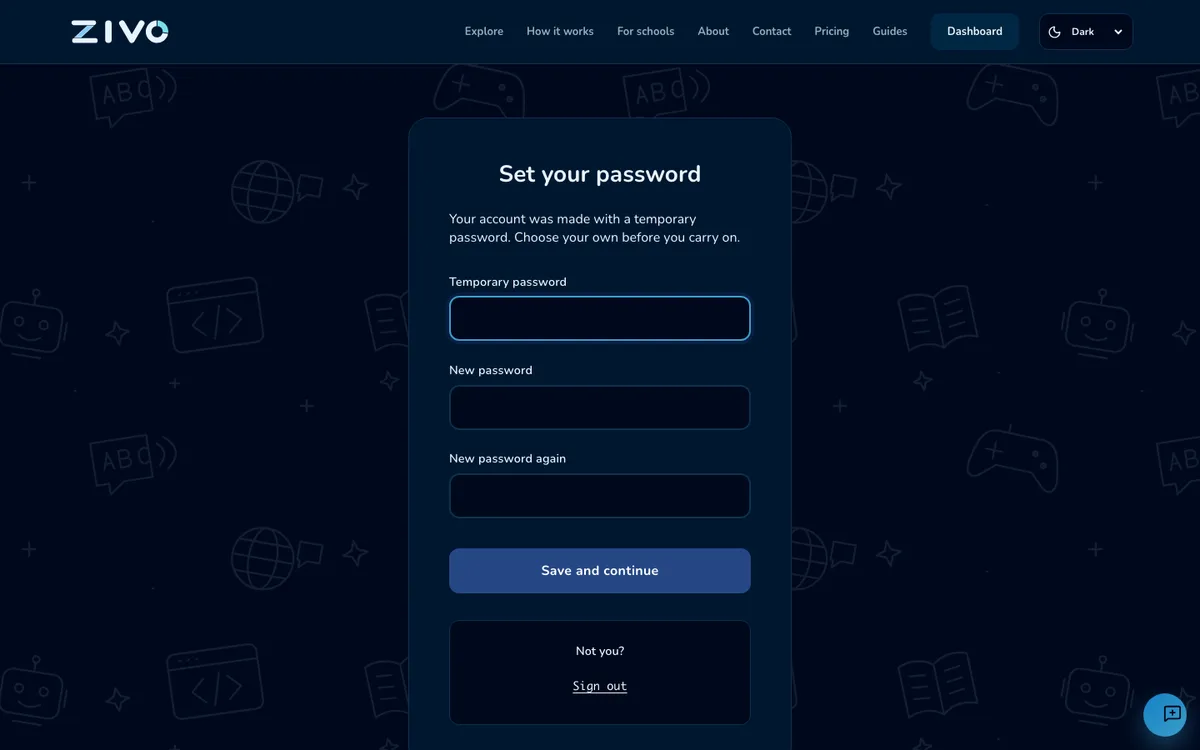
It is one account. Your username, password, level and plan are the same on both addresses. Your published RoboCode project websites never receive your login. If a page asks you to sign in again, sign in once more and it will usually be remembered on the other address too. Sign in with the username and temporary password you were given. On Set your password , type the Temporary password again. zivo.cloud/set-password
Type your own New password , then type it again in New password again . Click Save and continue . You go on to the page you wanted. Good to know
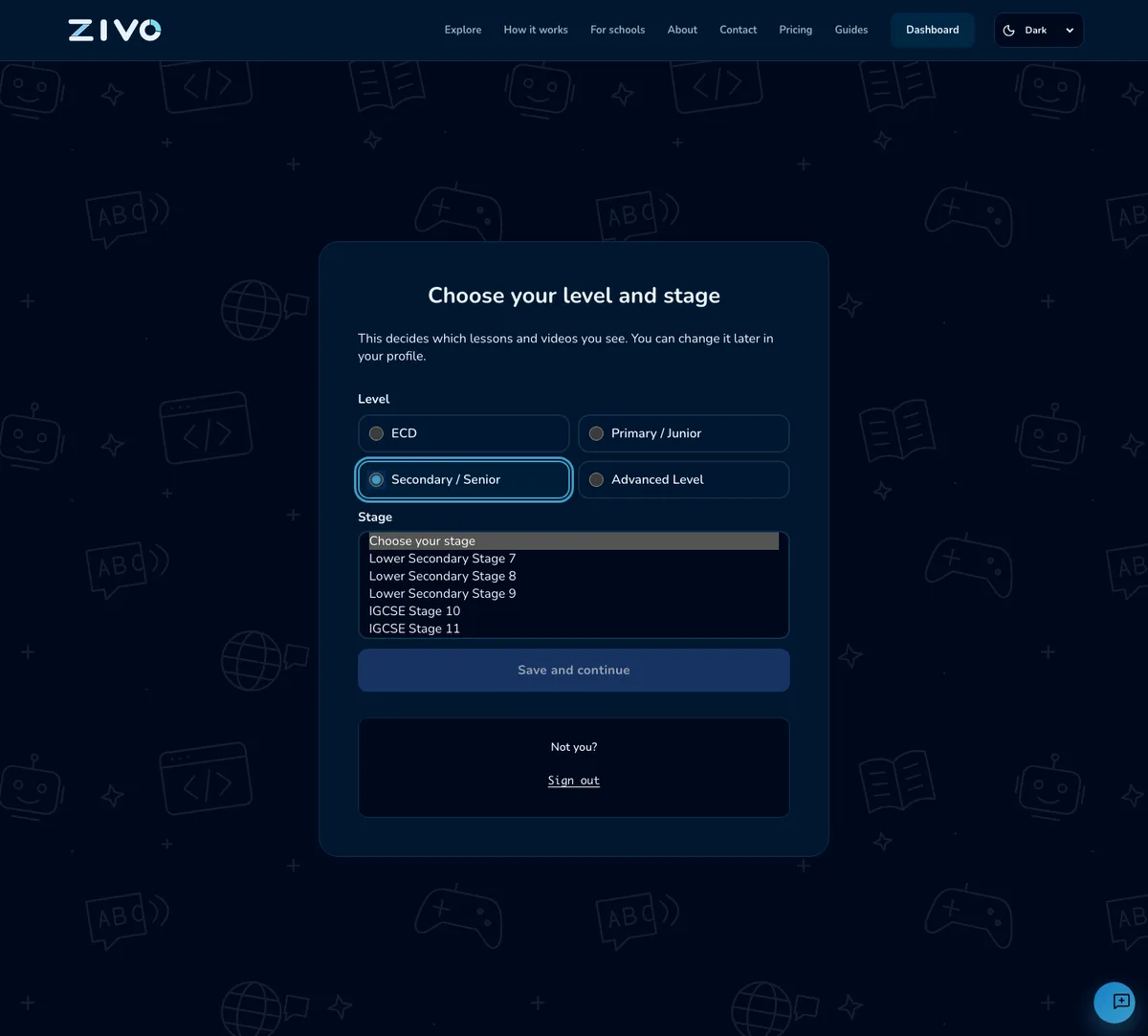
Until you finish this step, other pages send you back here. Only the login, privacy and terms pages stay open. Using a shared computer? Click Sign out under Not you? and ask for help. Pick a password you can remember but others cannot guess. You can change it later from your profile. If the page Choose your level opens after you sign in, read the line that says this decides which lessons and videos you see. zivo.cloud/choose-level
Choose a Level card: ECD, Primary / Junior, Secondary / Senior or Advanced Level. Open Stage and pick your stage. Click Save and continue . Good to know
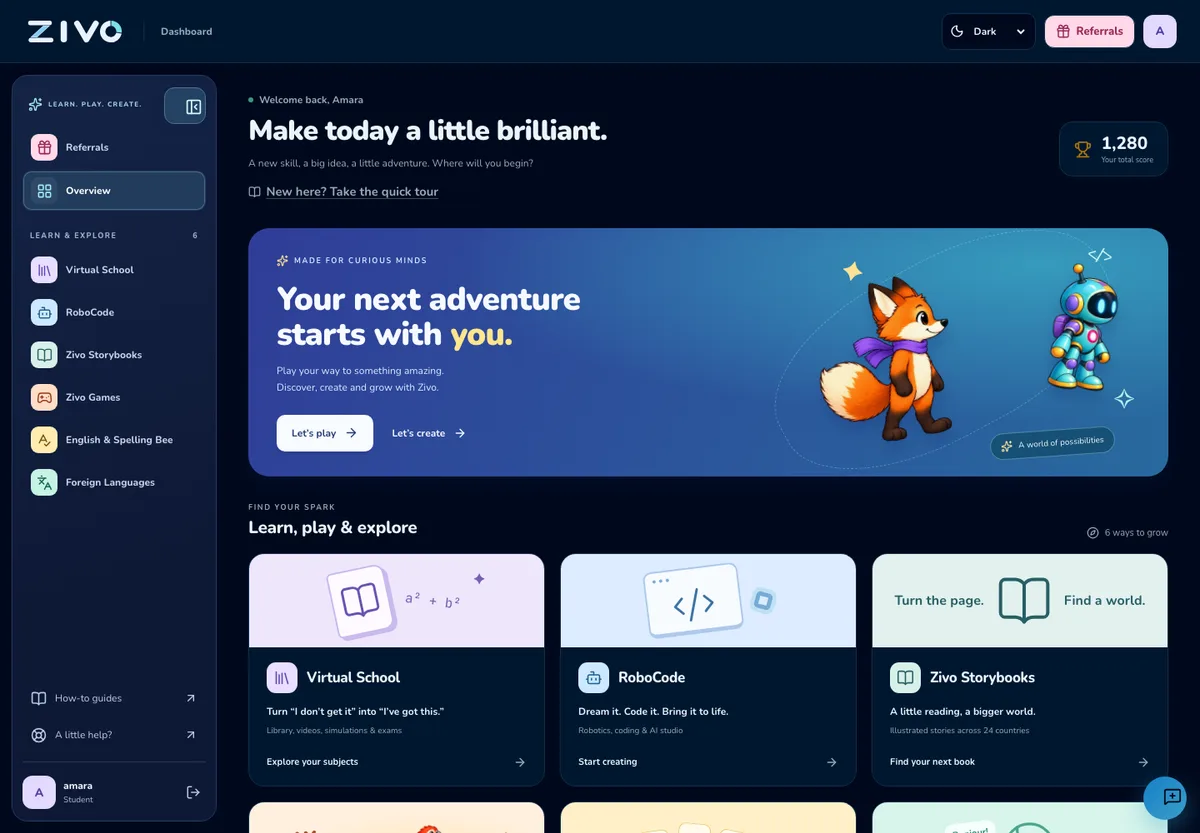
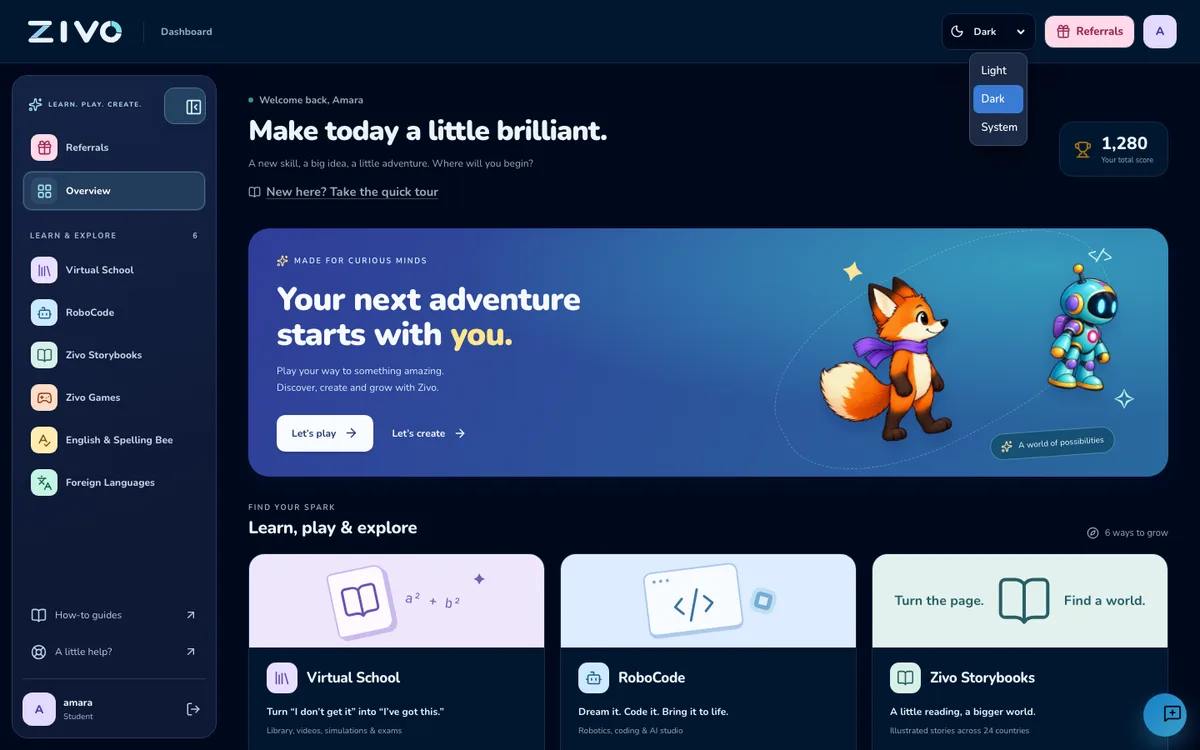
ECD covers stages 1 to 2. Primary covers stages 1 to 6. Secondary covers stages 7 to 11: 7 to 9 are Lower Secondary and 10 to 11 are IGCSE. Advanced Level covers stages 12 and 13 (AS and A2). You can change your level and stage later from your profile. Only student accounts are limited by level. Teachers, parents and administrators can see every level. After you sign in, the dashboard opens. Your name and total score are at the top. zivo.cloud/dashboard
Your dashboard and sidebar. Scroll to Learn, play & explore . Each tile opens a module such as Virtual School , RoboCode , Zivo Storybooks , Zivo Games , English & Spelling Bee or Foreign Languages . Use the sidebar on the left to move between modules. Overview brings you back to the dashboard. Click Referrals at the top of the sidebar, or the gift icon in the top bar, to invite friends. Click your name at the bottom of the sidebar to open your profile. Click A little help? for the Help Center. To get more room, use the arrow button on the edge of the sidebar to hide it. Click Show menu to bring it back. Good to know
On a phone, tap the menu button at the top to open the module list. Administrators also see a Your workspace group with pages such as Partners, Users and Settings. Learners do not. Locked actions on the Free plan stay visible and show Upgrade to unlock . Change your picture, your name or username and, if you are a student, your level and stage.
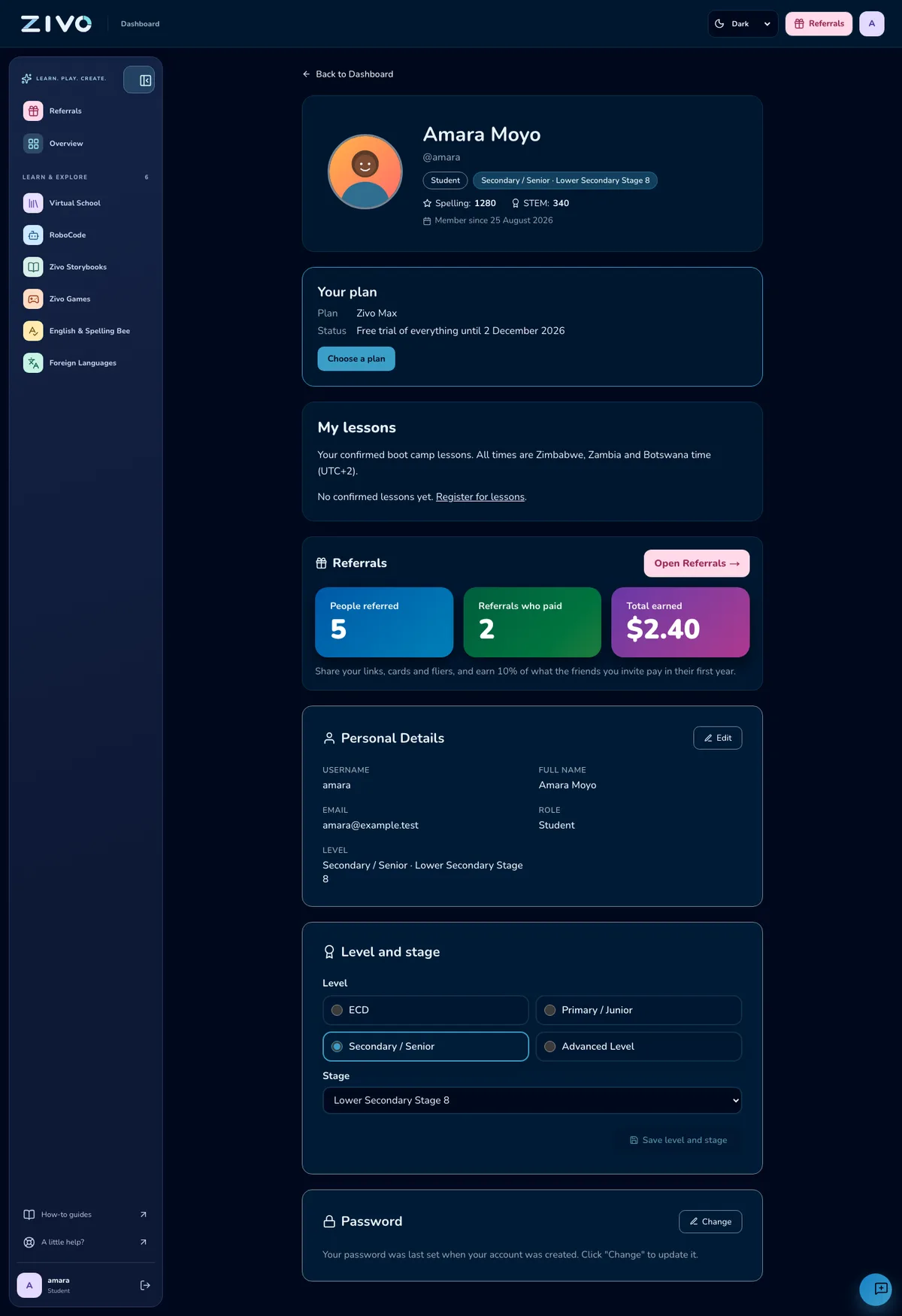
Open your profile from the sidebar or the round initial in the top bar. zivo.cloud/profile
Click the camera icon on your picture and choose a JPEG, PNG, GIF or WebP file up to 5 MB. Under Personal Details , click Edit . Change your Username or Full Name . Click Save Changes . Click Cancel to throw your changes away. Students: under Level and stage , pick a new level and stage, then click Save level and stage . Good to know
You cannot change your email address here. Contact support if you need that. The profile also shows Your plan and your referral card. Open your profile and scroll to the Password section. Click Change . Type your Current Password . Type your New Password and type it again in Confirm New Password . Use at least 8 characters with capital and small letters, a number and a symbol. Click Update Password . A message says that the password changed. Good to know
This works only while you can sign in. If you cannot, ask your administrator to reset it. An administrator who resets your password gives you a new one directly. Change it when you can. Look at the top bar of any workspace page. Find the small list with a sun or moon icon, called Colour theme . zivo.cloud/dashboard
Open the list. Choose Light , Dark or System . Good to know
System follows your device. Your device switches to dark at night, so ZivoCloud does too.Your choice is remembered in the browser you used. Use everything you like for the first 7 days. A banner at the top says when your full-access trial ends. Open your profile and look at Your plan . Status says Free trial of everything with a date. zivo.cloud/profile
To keep every module, click Choose a plan and follow the Pricing page. If you do nothing, Status changes to Free plan when the trial ends. Your lessons and progress are kept. Good to know
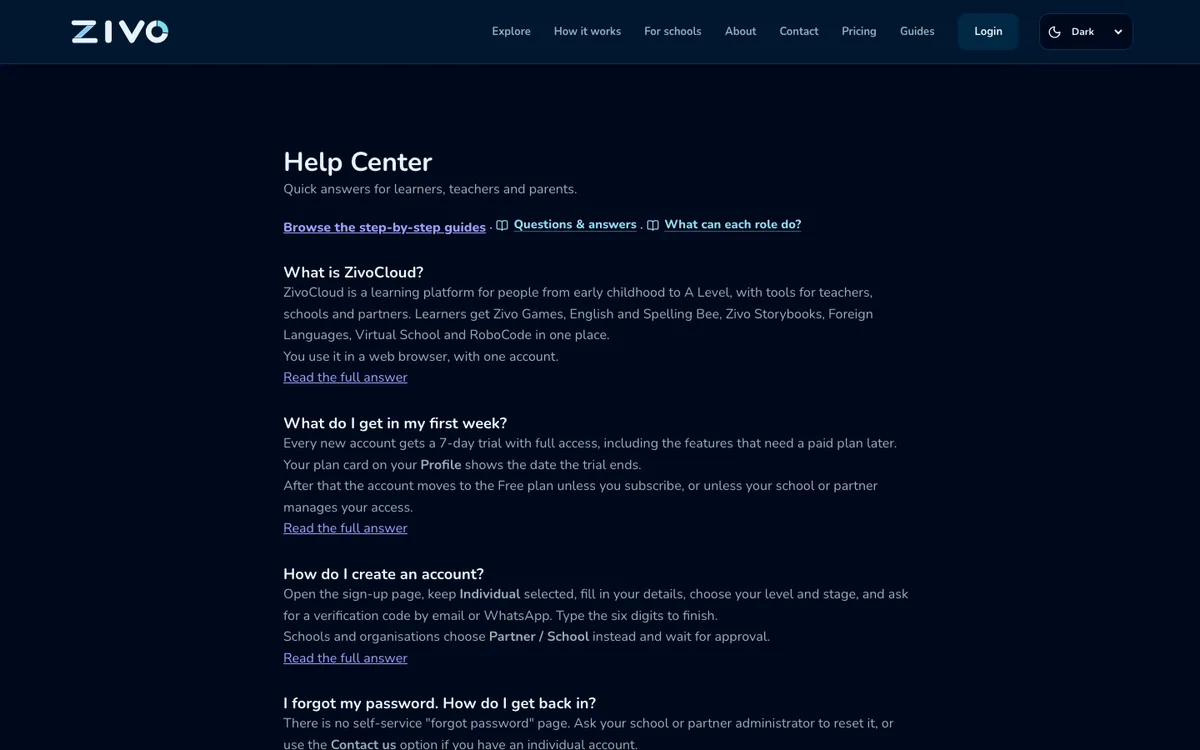
On the Free plan you can still browse every module. Locked buttons show Upgrade to unlock instead of hiding. Click Dismiss on the trial banner to hide it for today. It returns the next day. See the plans and billing tutorials for how to pay. Click A little help? at the bottom of the sidebar. Signed-out visitors can open /help directly. zivo.cloud/help
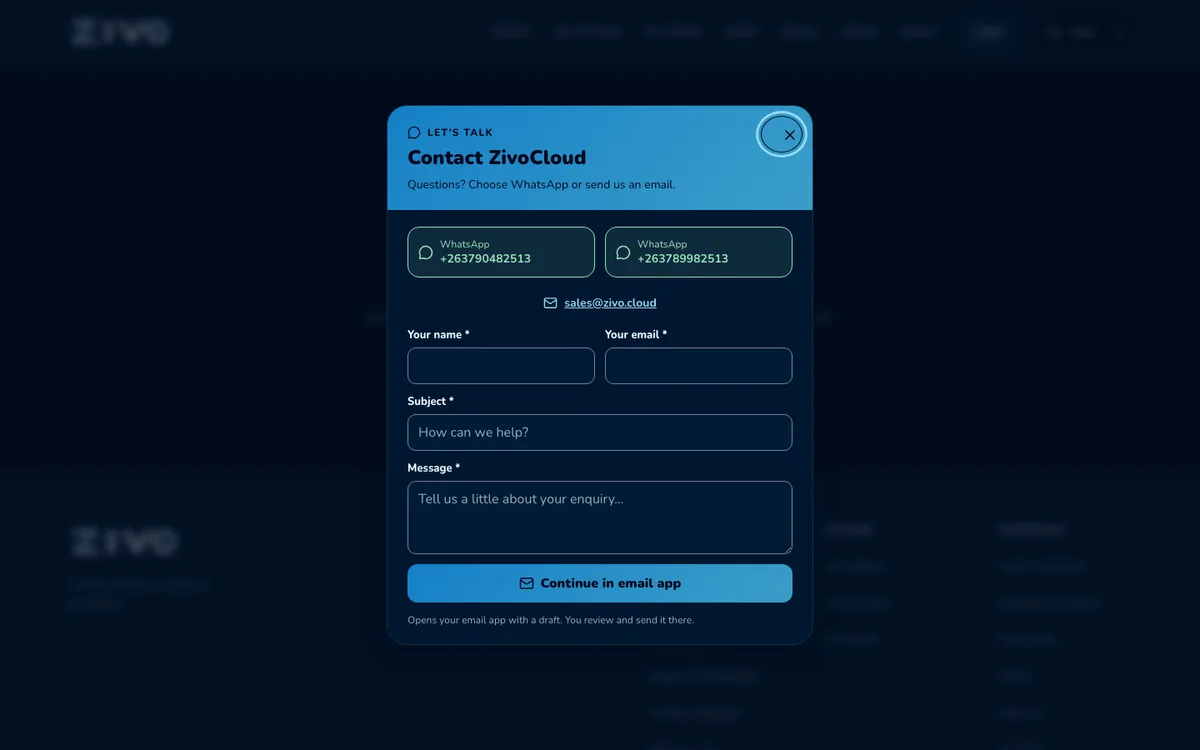
Read the answers on the Help Center page. Need more? Click Contact us . The Contact ZivoCloud box opens. Choose a WhatsApp number or the email address, or fill in Your name , Your email , Subject and Message and click Continue in email app . zivo.cloud/contact
Good to know
Some Help Center answers are older than the latest changes. If a button or page does not match, use Contact us . The box does not send your message itself. Your email app opens with the message ready for you to send. WhatsApp is usually the quickest way to reach us. Next topic: Zivo Games