Guides / Tutorials / Plans & billing
The free trial, Pro and Max, and how to pay.
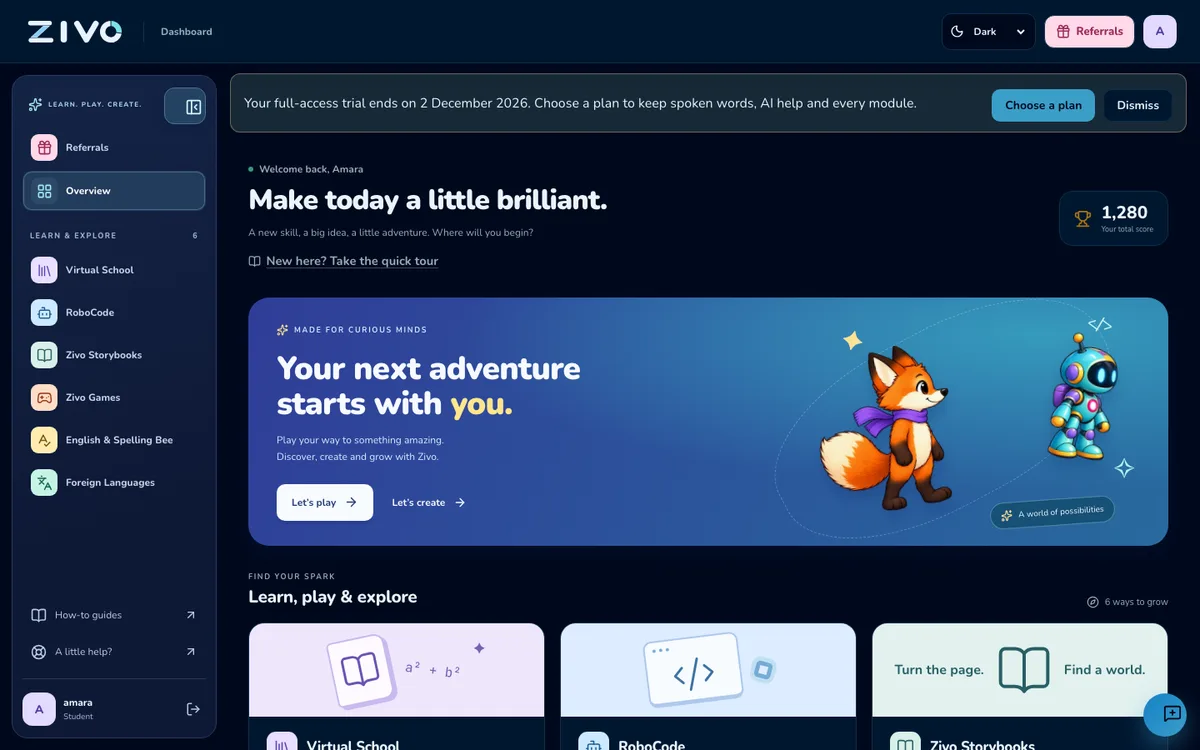
How the 7-day trial and the Free plan work Compare plans on the Pricing page Pay with EcoCash or OneMoney (Zimbabwe) Pay with InnBucks (Zimbabwe) Pay by card (any country) What “Upgrade to unlock” means Renew or change your plan and check payments What a school-managed account sees Sign up. Your 7 days of full access start straight away. During the trial a banner says that your full-access trial ends on a date. Click Choose a plan to see the plans, or Dismiss to hide the banner for today. zivo.cloud/dashboard
Open your profile and look at Your plan . Status shows the end date of the trial. The day before the trial ends, ZivoCloud sends you an email. When the trial ends, Status reads Free plan . You keep your account and your progress. Locked actions on the Free plan show Upgrade to unlock . Choose a plan any time to open them. Good to know
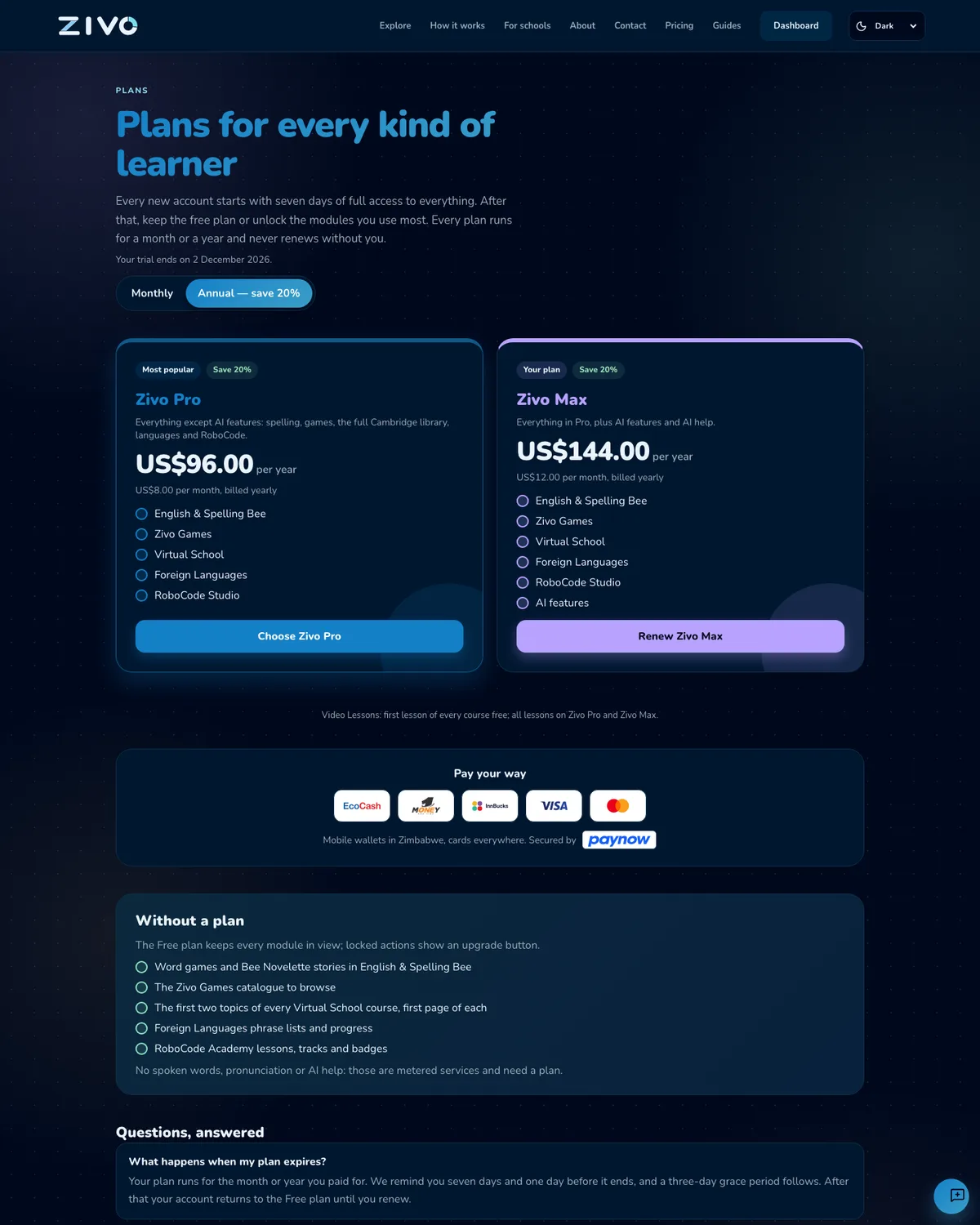
On the Free plan you keep word games and Bee Novelette stories, the Zivo Games catalogue to browse, the first topics of every Virtual School course, Foreign Languages phrase lists and RoboCode Academy lessons. See the Without a plan section of the Pricing page for the full list. Staff accounts and accounts managed by a school or partner do not use the trial. They have their own access. Open /pricing. The page is called Plans for every kind of learner . zivo.cloud/pricing
Compare Zivo Pro and Zivo Max on the Pricing page. Switch between Monthly and Annual — save 20% to compare the prices. Read the two cards. Zivo Pro is marked Most popular . Zivo Max adds AI features and AI help. Scroll to Without a plan to see what stays free. Read Questions, answered for expiry, payment, renewal and changing plan. Click Choose Zivo Pro or Choose Zivo Max . If you are not signed in you are asked to sign up first. Good to know
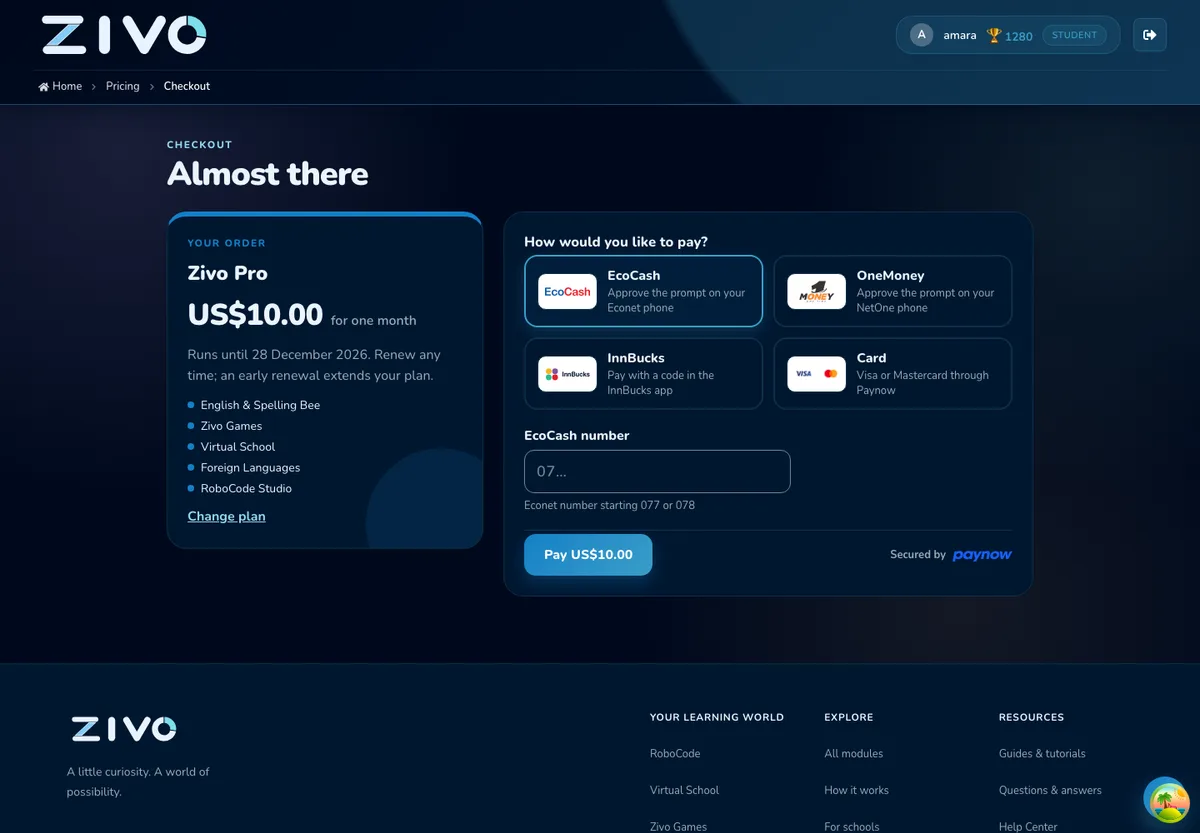
If you already have a plan, the button says Renew and your own card is marked Your plan . Plans run for a month or a year and never renew without you. On the Pricing page, click Choose Zivo Pro or Choose Zivo Max . On the checkout page, check Your order and the date your plan runs until. zivo.cloud/pricing/checkout
Choose a payment method and type your wallet number. Under How would you like to pay? choose EcoCash or OneMoney . Type your wallet number in the box. EcoCash uses an Econet number and OneMoney uses a NetOne number. Click Pay with the amount on the button. The page changes to Approve the payment on your phone . Approve the request on your phone with your wallet PIN. Stay on the page. When the payment is confirmed it says You’re all set . Click See your plan to check. Good to know
If nothing is confirmed after a few minutes, click Check again , or look at your profile later. You receive a receipt by email. You do not need a Paynow account. Staff accounts and accounts managed by a school or partner cannot buy a plan. On the Pricing page, click Choose Zivo Pro or Choose Zivo Max . Under How would you like to pay? choose InnBucks . zivo.cloud/pricing/checkout
Choose a payment method and type your wallet number. Type the mobile number of your InnBucks account in Mobile number , then click Pay . The page shows Pay in the InnBucks app with a QR code and a six-digit code. Scan the QR code with the phone that has InnBucks. Or open InnBucks, choose Pay and type the code. Copy code helps. Stay on the page until it says You’re all set . Good to know
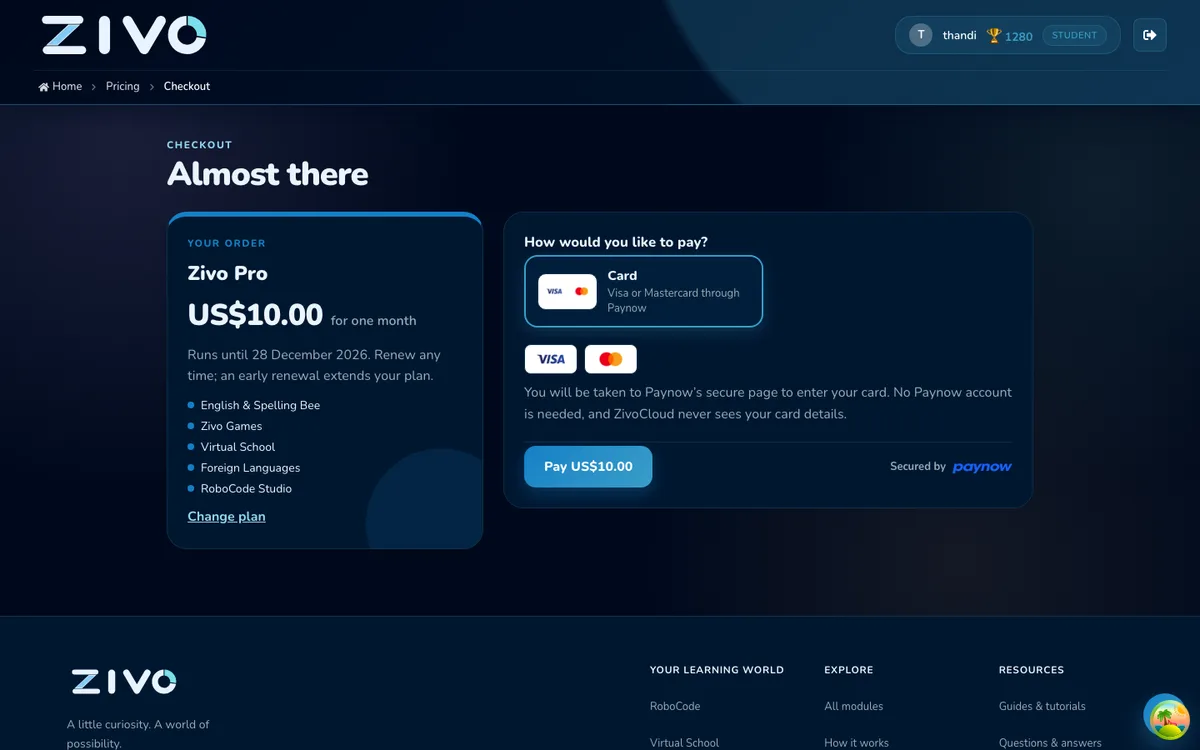
Finish before the time shown on the page. If it runs out, start again. On the same phone, tap Open InnBucks on this phone . On the Pricing page, click Choose Zivo Pro or Choose Zivo Max . Under How would you like to pay? choose Card . Read the note that you will go to Paynow’s secure page. zivo.cloud/pricing/checkout
Click Pay with the amount on the button. Type your card details on the Paynow page. You return to ZivoCloud. When the payment is confirmed the page says You’re all set . Good to know
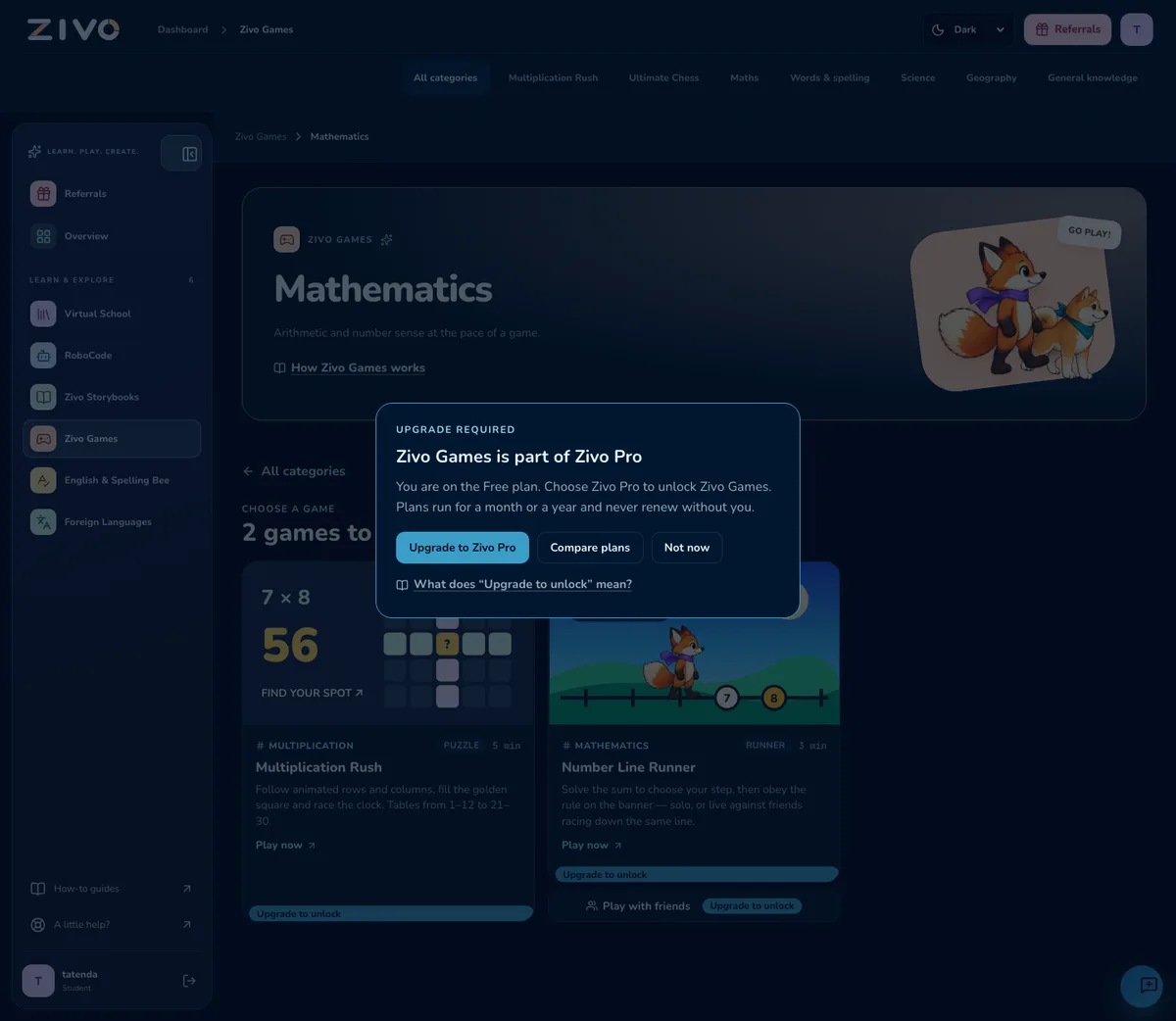
You do not need a Paynow account, and ZivoCloud never sees your card details. If the page says the payment was cancelled or not completed, no money was taken. Click Try again . PayPal is no longer available. Find a button or link that shows Upgrade to unlock . The page behind it stays visible so you can see what you would get. Click it. A panel headed Upgrade required opens and names the plan you need. zivo.cloud/games
The panel that opens when you click a locked action. Click Upgrade to Zivo Pro (or Max) to go straight to checkout, or Compare plans to see the Pricing page. Click Not now to close the panel and keep browsing. Good to know
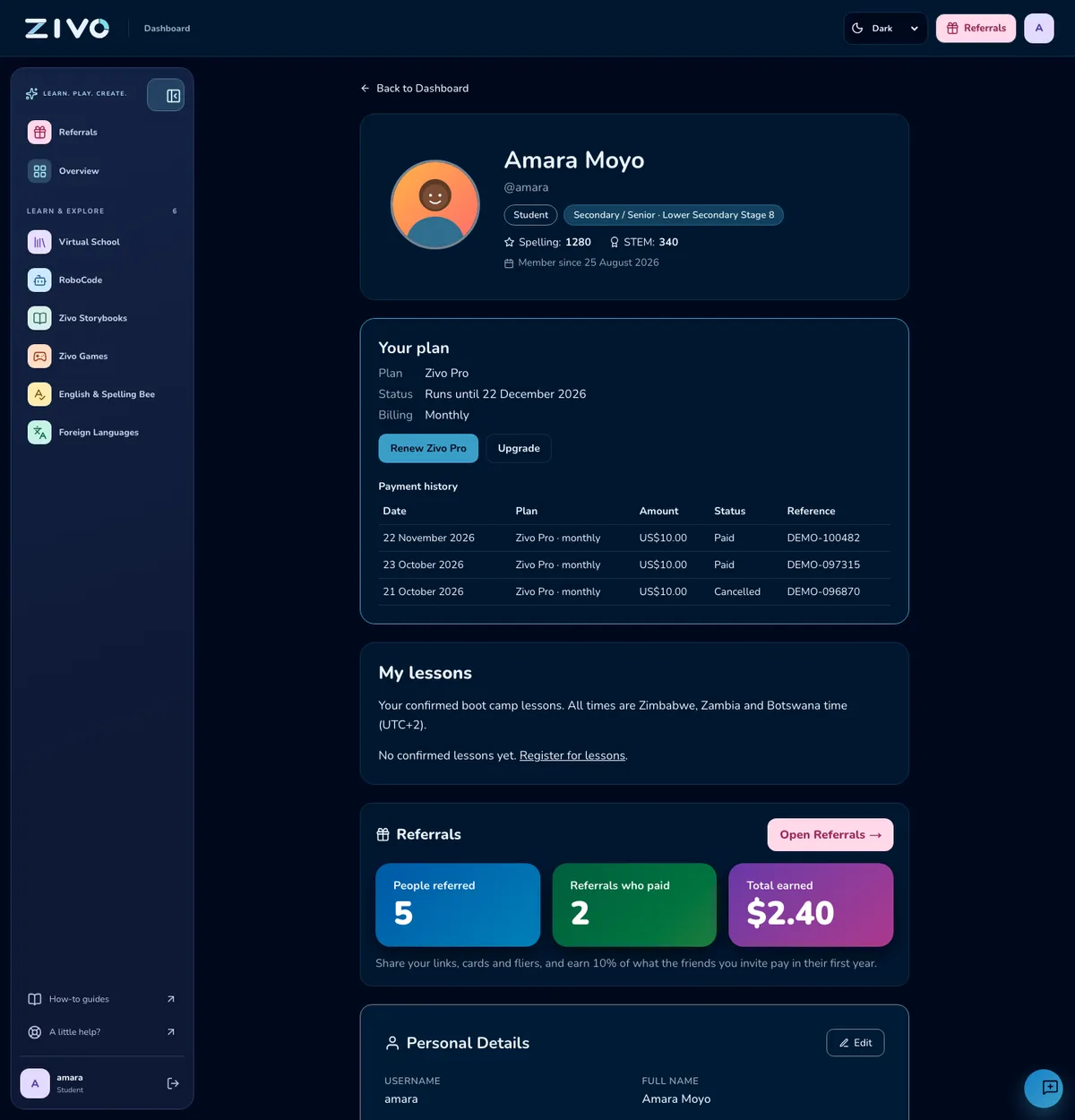
Some pages show the same message in the page itself instead of a panel. A school-managed account never needs to upgrade. If you see a lock there, tell your administrator. Look for the banner that says your plan ends on a date. ZivoCloud also emails you 7 days and 1 day before, and a short grace period follows the end date. Click Renew in the banner, or open your profile. On Your plan , click Renew with your plan name to buy another period, or Upgrade to see bigger plans. zivo.cloud/profile
Pay as described in the payment tutorials. Back on your profile, open Payment history to see the date, plan, amount, status and reference of each payment. Good to know
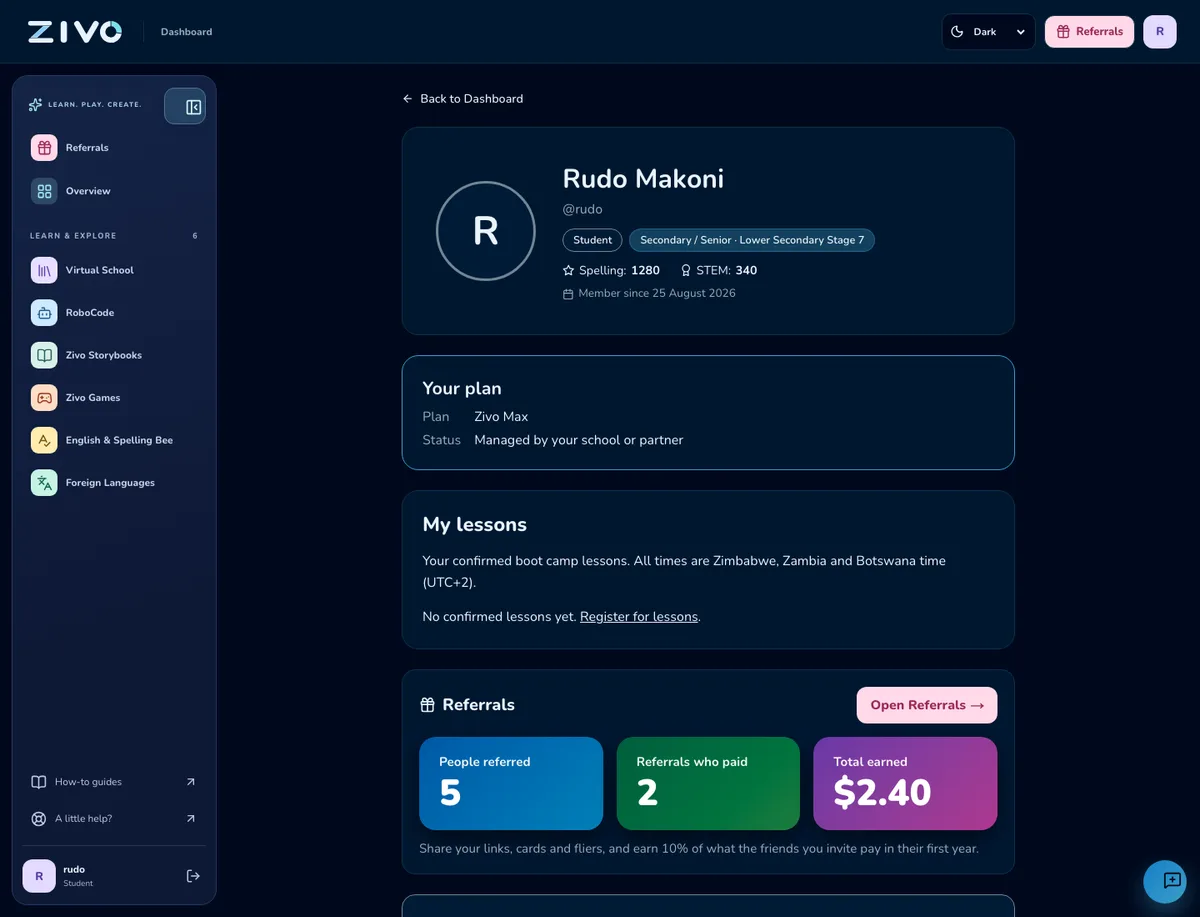
Renewing early adds time to the end of your current plan. A different plan begins when the current one ends, so you never lose paid time. Needs attention means the payment did not match the order. No plan is activated by itself. Contact the team and quote the reference.For Failed or Cancelled , choose a plan again to retry. Open your profile and find Your plan . zivo.cloud/profile
Read Status . It says Managed by your school or partner (or Staff access for staff). Notice that there is no Choose a plan or Renew button. You do not need one. Use every module as normal. If something is missing, ask your school or partner administrator. Good to know
Virtual School lessons that a tutor sells separately are paid for on their own, even on a managed account. Your administrator controls which modules your organisation switches on. Next topic: Friends & referrals